Run this notebook
Purpose
Susceptibility-weighted imaging (SWI) is an MRI technique that exploits differences in magnetic susceptibility between tissues to generate contrast. It is particularly useful for visualising venous vasculature, microbleeds, calcifications, and iron deposits in the brain.
This tutorial demonstrates how to:
Download a demo MRI dataset containing magnitude and phase images
Use the CLEAR-SWI Julia package within Neurodesk to compute SWI maps
Generate a minimum intensity projection (mIP) for enhanced vein visualisation
Inspect the results in an image viewer
Citation and Resources
Tools used in this workflow
- CLEAR-SWI
- Eckstein, K., et al. (2021). Improved susceptibility weighted imaging at ultra-high field using bipolar multi-echo acquisition and optimized image processing: CLEAR-SWI. NeuroImage, 237, 118175. Eckstein et al. (2021)
Educational resources
Prerequisites
A running Neurodesktop VNC session
Familiarity with entering commands in a terminal
No additional software installation required — CLEAR-SWI is pre-installed in Neurodesk
Load software tools and download demo data
First, we download the demo dataset (from the HuggingFace mirror of OSF project ru43c) and unzip the BIDS-formatted data. We use the same demo dataset as the Unwrapping tutorial.
To do so, open a Neurodesktop session, launch a terminal and run the following commands.
The terminal in Neurodesktop.
mkdir -p ~/neurodesktop-storage/swi-demo/
curl -fL --retry 5 --retry-all-errors -o ~/neurodesktop-storage/swi-demo/01_bids.zip \
   https://huggingface.co/datasets/neurodeskorg/qsm-testdata/resolve/c97dfec3f16c6f4b5570e260a323931ed48db9ef/01_bids.zip

unzip -o ~/neurodesktop-storage/swi-demo/01_bids.zip -d ~/neurodesktop-storage/swi-demo/
Confirm that ~/neurodesktop-storage/swi-demo/01_bids/ exists after extraction. If you already downloaded this dataset for the Unwrapping tutorial, reuse it.
Run CLEAR-SWI
Write a Julia script that will perform three steps:
Read the magnitude and phase NIfTI files
Compute the SWI volume using
calculateSWIGenerate a minimum intensity projection (mIP) using
createMIP
Using the command
nano ~/neurodesktop-storage/clearswi.jlcreate a file called clearswi.jl with the following contents :
using CLEARSWI

TEs = [20]
nifti_folder = joinpath(homedir(), "neurodesktop-storage/swi-demo/01_bids/sub-170705134431std1312211075243167001/ses-1/anat")
magfile = joinpath(nifti_folder, "sub-170705134431std1312211075243167001_ses-1_run-1_part-mag_T2starw.nii")
phasefile = joinpath(nifti_folder, "sub-170705134431std1312211075243167001_ses-1_run-1_part-phase_T2starw.nii")

println("Loading magnitude and phase data...")
mag = readmag(magfile);
phase = readphase(phasefile);
data = Data(mag, phase, mag.header, TEs);

println("Computing SWI...")
swi = calculateSWI(data);

println("Creating minimum intensity projection...")
mip = createMIP(swi);

outdir = joinpath(homedir(), "neurodesktop-storage/swi-demo")
println("Saving outputs...")
savenii(swi, joinpath(outdir, "swi.nii"); header=mag.header)
savenii(mip, joinpath(outdir, "mip.nii"); header=mag.header)

println("Done! Output saved to ~/neurodesktop-storage/swi-demo/")
Save with Ctrl+X, then Y and Enter. Alternatively, use F3 and Enter to write the file, then F2 to exit Nano.
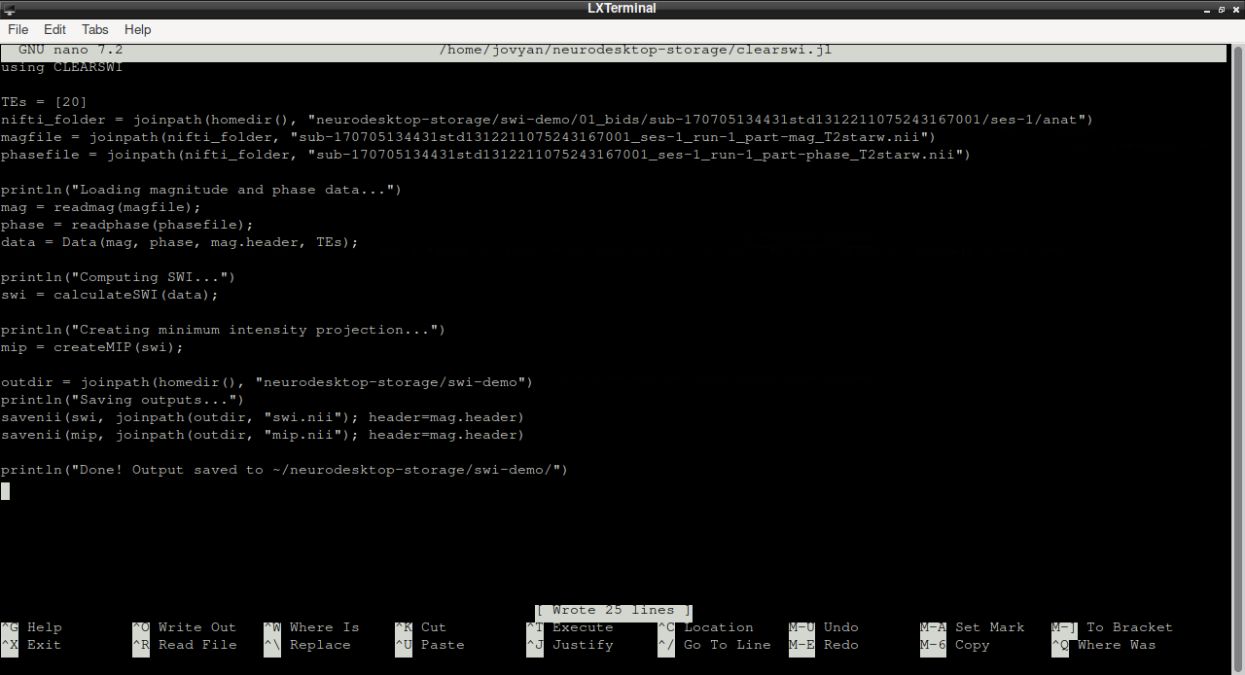
The Neurodesktop terminal with the Julia script.
Open Neurodesk → Phase Processing → clearswi → clearswi 1.7.0. Use the new container terminal for the next commands.
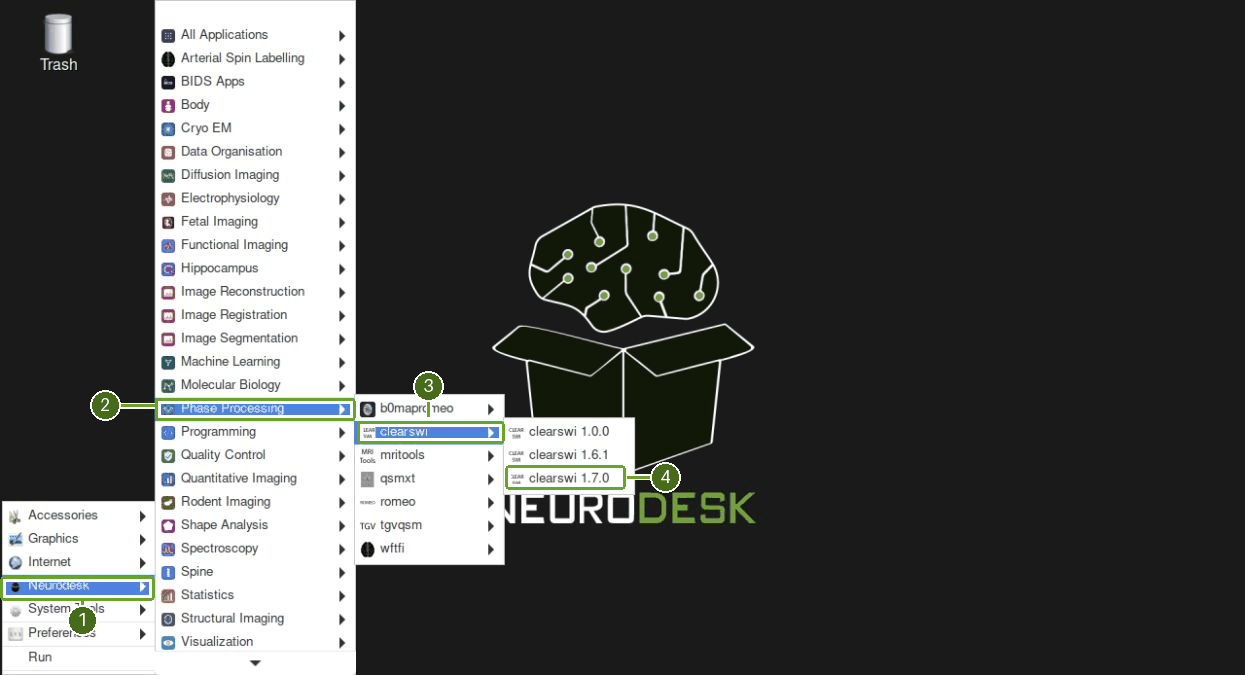
Opening CLEAR-SWI in Neurodesktop.
Then run your newly written file from the CLEAR-SWI container terminal:
cd ~/neurodesktop-storage/
julia clearswi.jl
The CLEAR-SWI container terminal after running the script.
The terminal should print Done!. Open ~/neurodesktop-storage/swi-demo/ in the file manager to confirm that both swi.nii and mip.nii were created.
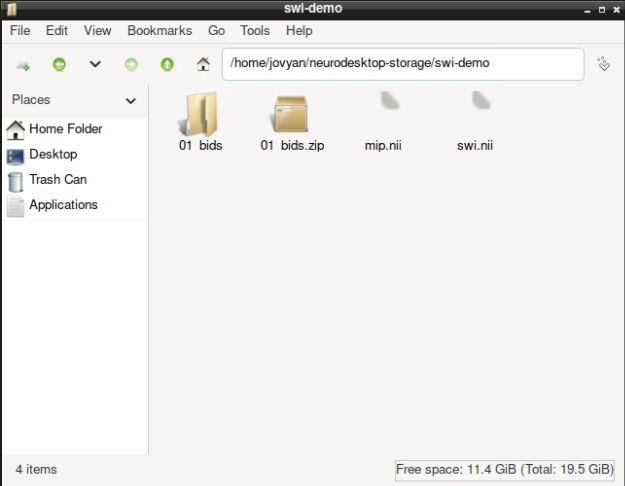
Inspect the results
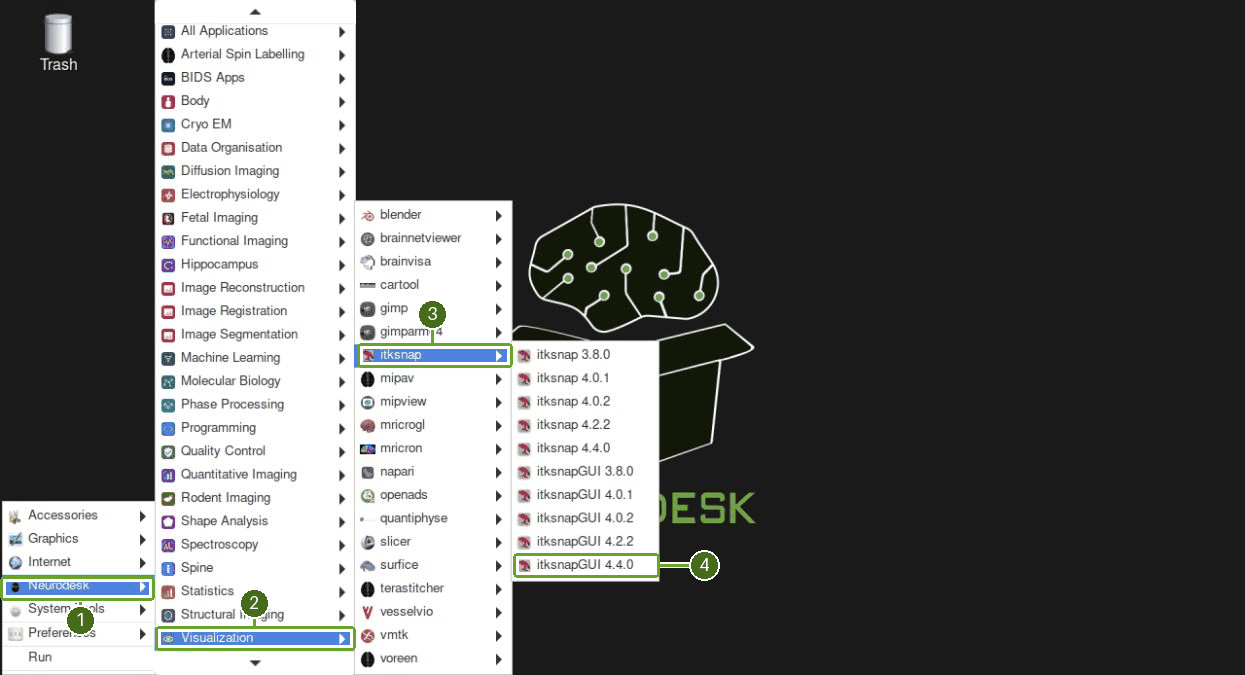
Open Neurodesk → Visualization → itksnap → itksnapGUI 4.4.0. If the layout reminder appears, choose No to retain the radiological convention.
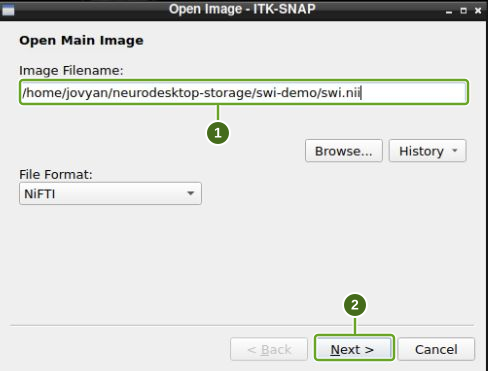
Choose File → Open Main Image…, enter
/home/jovyan/neurodesktop-storage/swi-demo/swi.nii, then click Next and Finish.
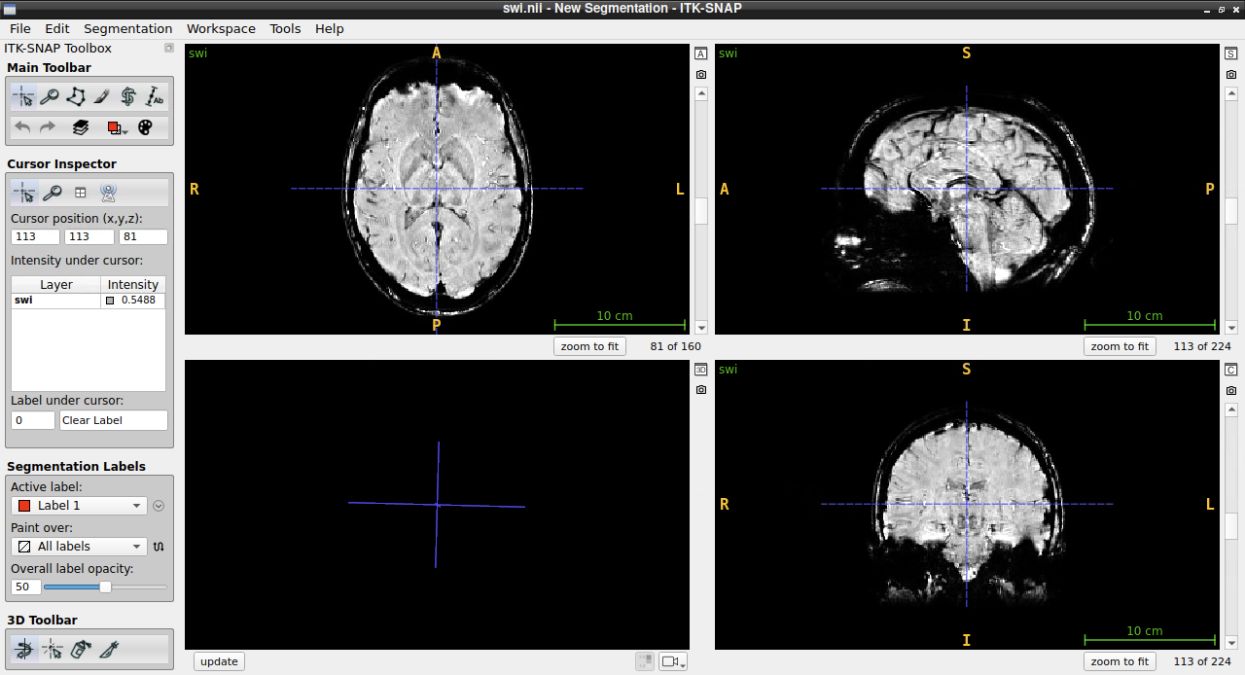
Choose Tools → Image Contrast → Auto-Adjust Contrast (all layers) if the image appears dark.

Choose File → Add Another Image… and load
/home/jovyan/neurodesktop-storage/swi-demo/mip.niiwith Next, then Finish. Click the small tiled-layout button beside a slice view to show both layers side by side. Run Auto-Adjust Contrast (all layers) again for the added image.
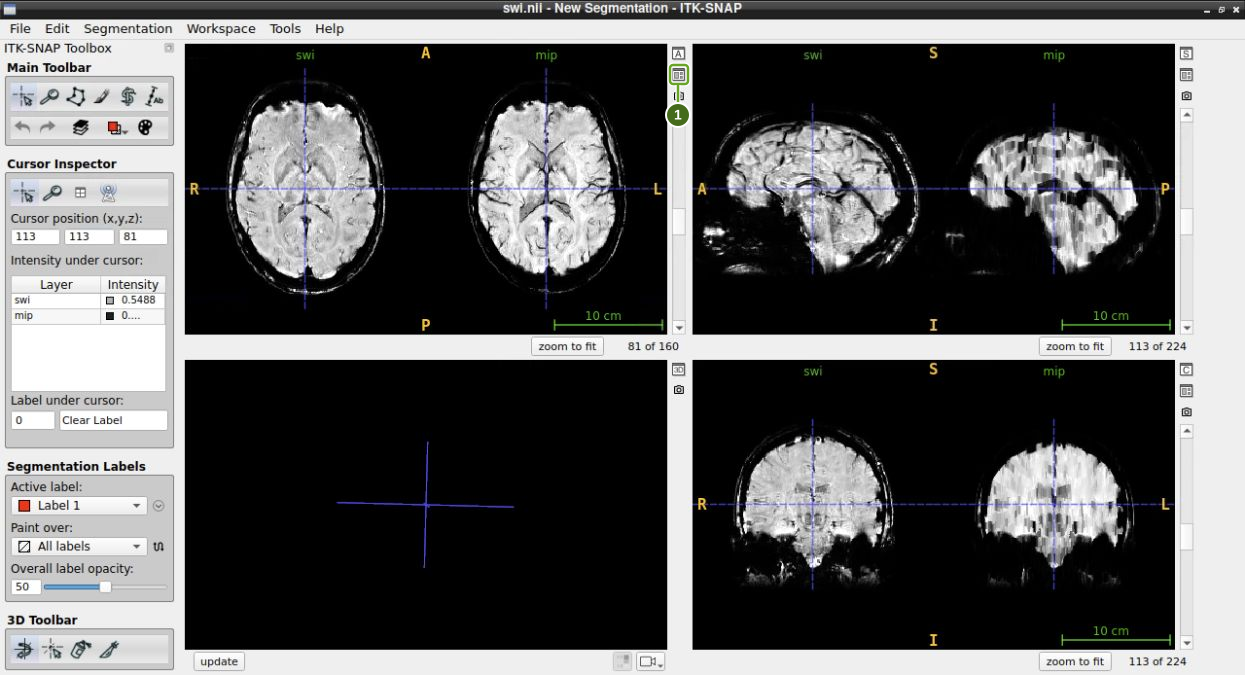
The mIP highlights venous structures as dark lines. Each panel shows SWI on the left and mIP on the right. This demo produces a projection with 154 slices, compared with 160 in the SWI image.
Summary
In this tutorial you:
Downloaded a demo magnitude/phase MRI dataset from the Open Science Framework
Used the CLEAR-SWI Julia package to compute susceptibility-weighted images
Generated a minimum intensity projection for enhanced venous visualisation
Inspected the outputs using ITK-SNAP
- Eckstein, K., Bachrata, B., Hangel, G., Widhalm, G., Enzinger, C., Barth, M., Trattnig, S., & Robinson, S. D. (2021). Improved susceptibility weighted imaging at ultra-high field using bipolar multi-echo acquisition and optimized image processing: CLEAR-SWI. NeuroImage, 237, 118175. 10.1016/j.neuroimage.2021.118175