Freeview is FreeSurfer’s graphical viewer for anatomical images, segmentations and surfaces. This example uses the fsaverage demonstration files bundled with FreeSurfer 8.2.0. You can start immediately without downloading a participant dataset or waiting for a reconstruction.
General use
Open LXTerminal using the terminal icon in Neurodesktop’s bottom panel. Click after the terminal prompt, where the cursor appears, and paste these commands, pressing Enter after each line:
ml freesurfer/8.2.0
freeview
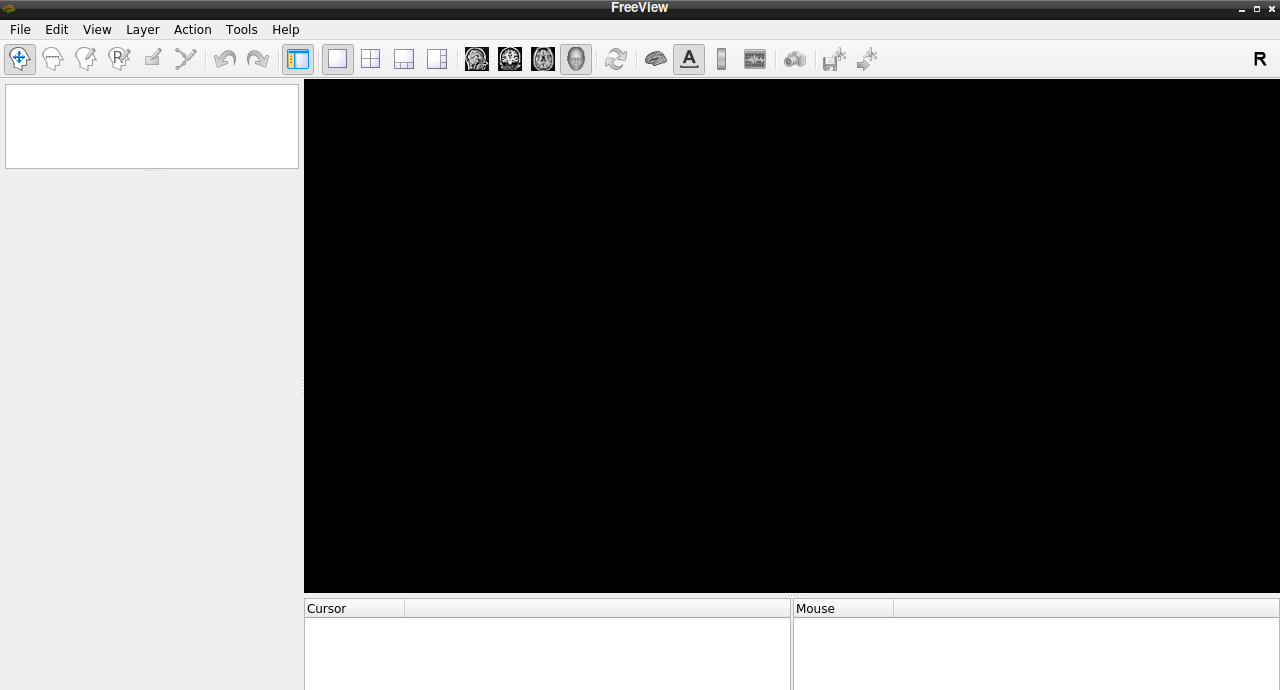
Wait until the FreeView window has fully opened, then double-click its title bar to maximize it. You should see the File menu, toolbar and empty viewing area shown below. Keep the launch terminal open in the background while Freeview runs.
The tested FreeSurfer container supplies a license. License contents do not need to be copied into a tutorial or typed into Freeview. If another container asks for a license, follow its launch-terminal instructions or obtain your own from the FreeSurfer registration page.
Worked example: anatomy, labels and a surface
1. Open the anatomical image
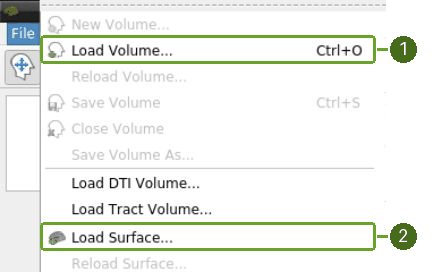
In Freeview, choose File → Load Volume… (1). The same menu also contains Load Surface… (2), which we will use later.
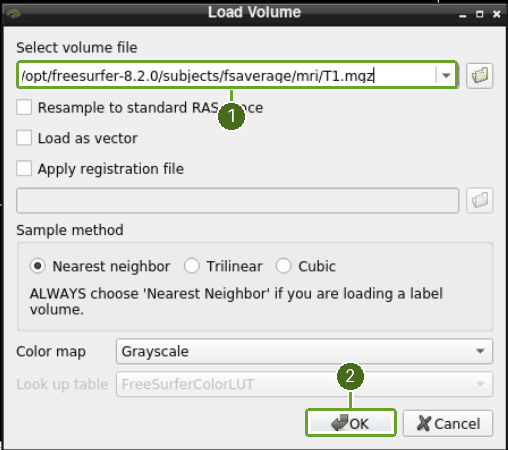
Paste the following path into Select volume file (1) in the Load Volume dialog:
/opt/freesurfer-8.2.0/subjects/fsaverage/mri/T1.mgzLeave Color map as Grayscale, then click OK (2).
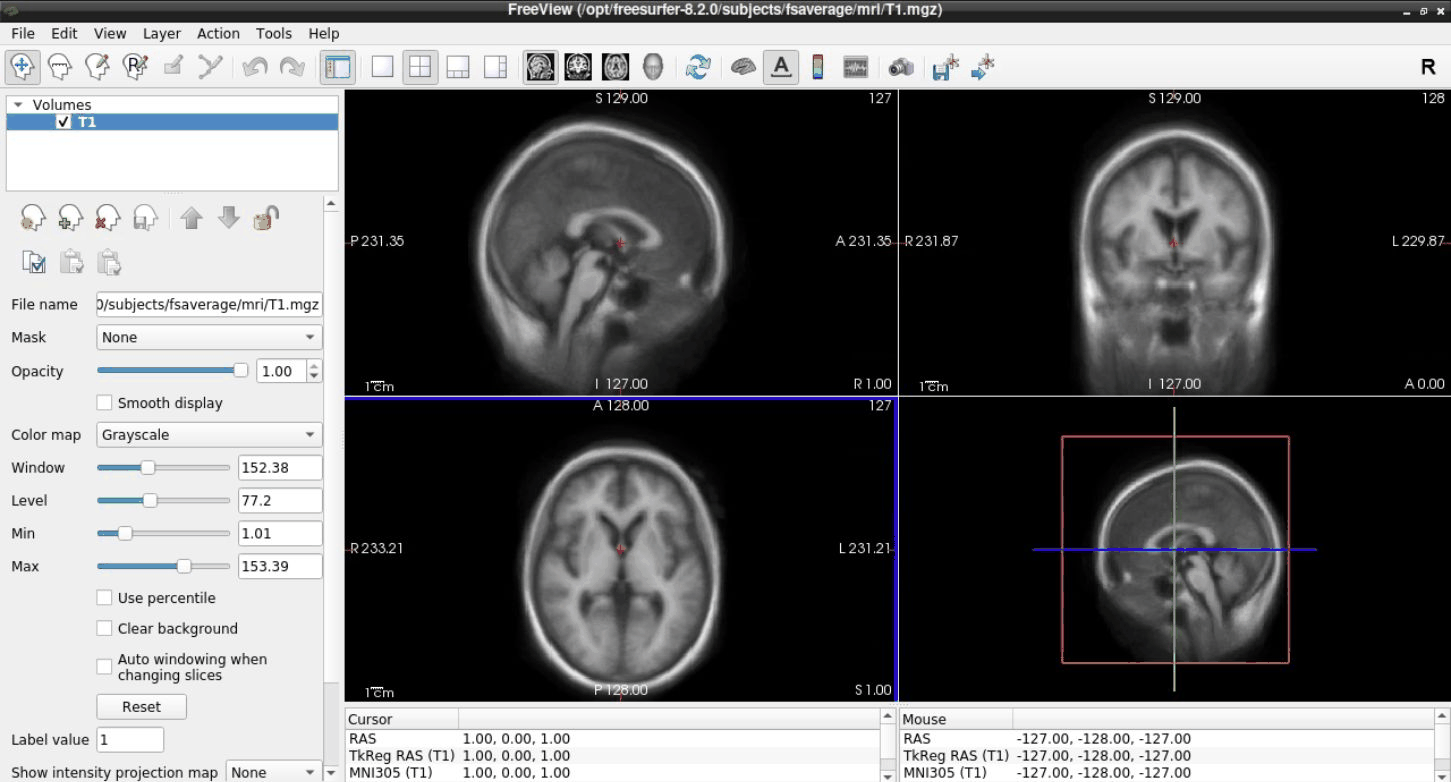
The image appears in sagittal, coronal and axial views, with a 3D view at the bottom right. Click within an anatomical view: the other slices follow the selected location, and the Cursor panel reports its coordinates and image value.
2. Add the segmentation
Choose File → Load Volume… again. Paste this path into Select volume file (1):
/opt/freesurfer-8.2.0/subjects/fsaverage/mri/aparc+aseg.mgzKeep Sample method → Nearest neighbor selected. Set Color map → Lookup Table (2) and leave Look up table → FreeSurferColorLUT. Click OK (3).
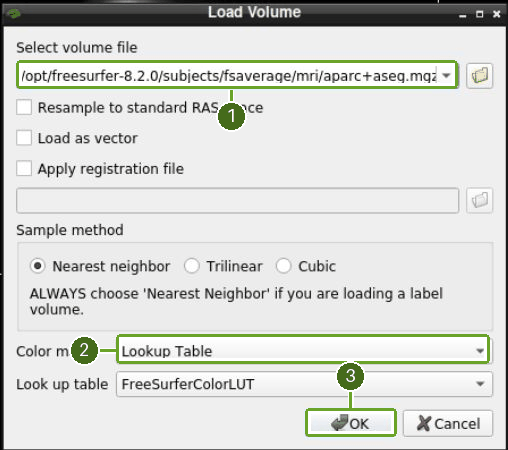
This file contains anatomical label numbers. The lookup table gives those labels distinct colours; nearest-neighbour sampling preserves the label values.
3. Inspect a labelled structure
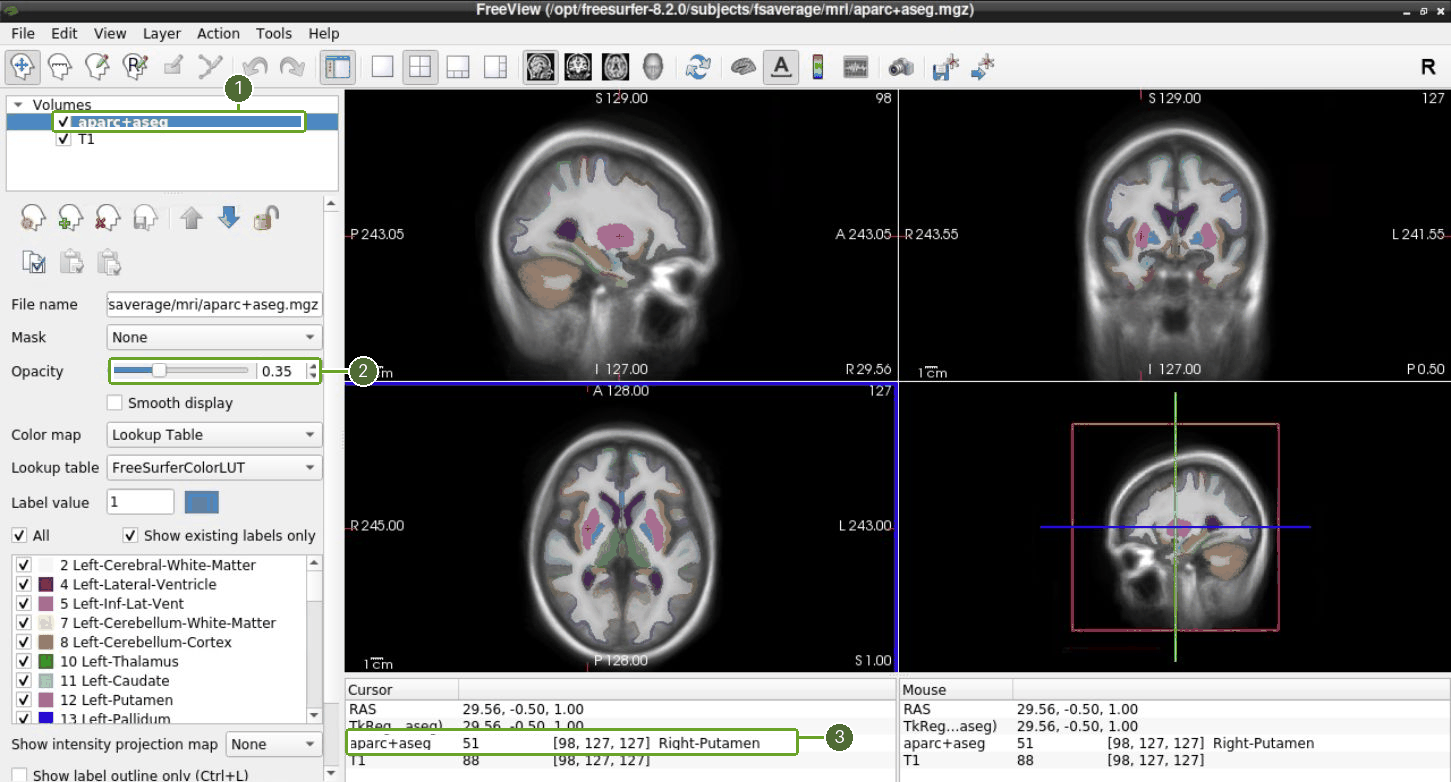
Select aparc+aseg in the left-hand Volumes list. Its checkbox (1) hides or shows the overlay. Set Opacity (2) to 0.35 so the underlying T1 image remains visible.
Click a coloured structure in a slice and read the aparc+aseg row in the Cursor panel (3). The screenshot shows label 51, Right-Putamen; a different location will show a different label. If the panel is too small, drag its upper divider upward.
4. Add a cortical surface
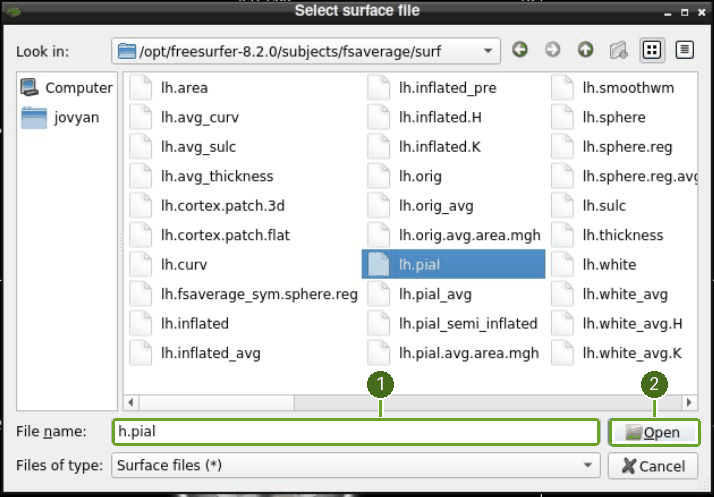
Choose File → Load Surface…. In the file chooser, enter this path in File name (1), then click Open (2):
/opt/freesurfer-8.2.0/subjects/fsaverage/surf/lh.pialYou can also select lh.pial from the displayed surf folder, as shown below. The surface appears under Surfaces in the left panel.
5. Explore the surface in 3D
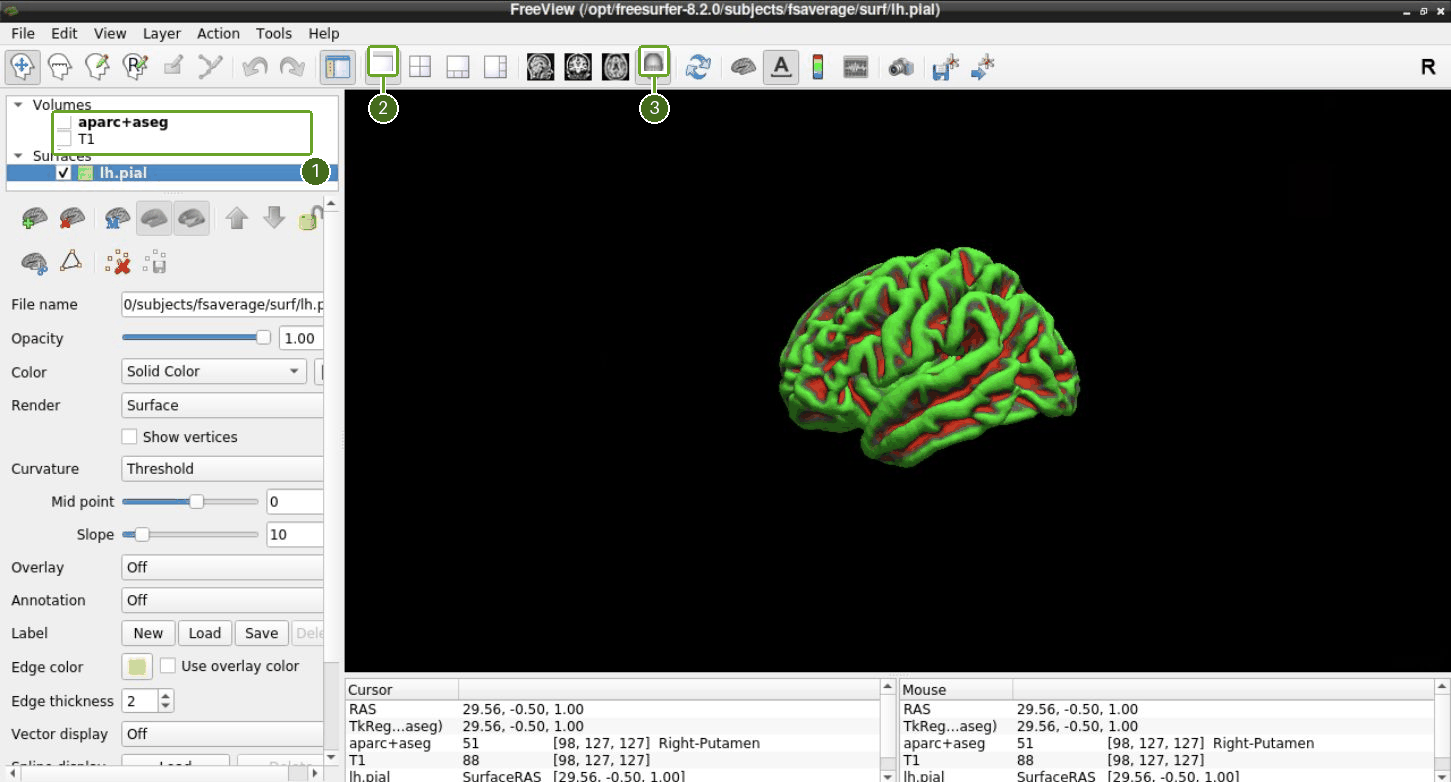
Clear the two Volumes checkboxes (1), leaving Surfaces → lh.pial checked.
Click the Single View toolbar button (2).
Click the 3D view button, shown as a grey head (3).
Drag within the 3D pane to rotate the surface and inspect its folds.
For the clean view shown here, turn off View → Show Cursor and View → Show Slice Frames (3D View). These display options do not change the data.
What you have checked
You have opened the bundled anatomy, displayed its segmentation with named structures, and rotated a cortical surface. This is a viewing exercise using existing demonstration outputs. To inspect your own FreeSurfer results, repeat the same steps with files from your subject’s mri/ and surf/ folders.
For more display options and guidance on inspecting reconstruction outputs, see the official Freeview guide and FreeSurfer output-viewing tutorial.