A tutorial for accessing and visualizing the 7T HCP Retinotopy Dataset on Connectome Workbench.
This tutorial was created by Fernanda L. Ribeiro.
Email: fernanda
.ribeiro@uq .edu .au Github: @felenitaribeiro
Twitter: @NandaRibeiro93
This tutorial documents how to use Connectome Workbench on neurodesk for visualizing the 7T HCP Retinotopy Dataset.
Download data
Review the HCP Open Access data-use terms and register for a BALSA account if you do not already have one.
In Firefox inside Neurodesk, open the HCP 7T Retinotopy study, sign in and click Download. Downloading inside Neurodesk places the archive in the instance, where Workbench can access it.
The full study is about 7.75 GB. This walkthrough uses
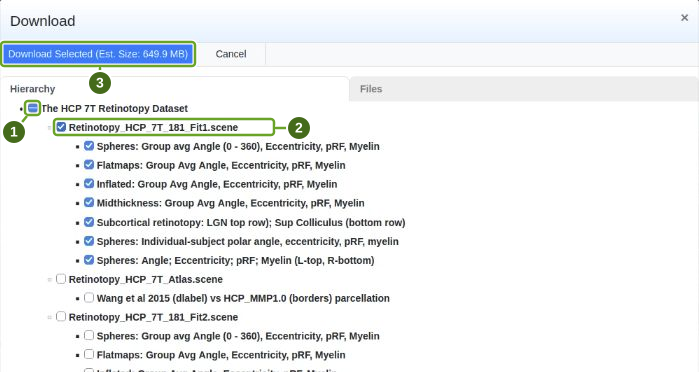
Retinotopy_HCP_7T_181_Fit1.scene, available with its required data as an approximately 650 MB selection. In the download dialog, follow the numbered targets:1 Clear the checkbox beside the study title. 2 Select
Retinotopy_HCP_7T_181_Fit1.sceneto include all of its scenes and data. 3 Click Download Selected.
These files contain preprocessed group and individual maps from 181 participants, including retinotopic, curvature, midthickness and myelin maps.
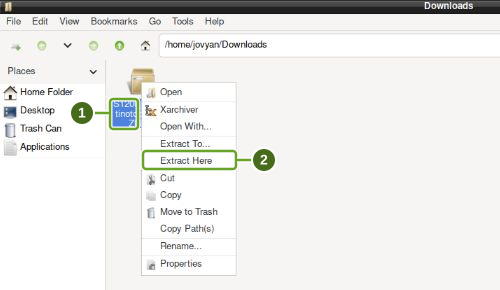
In Firefox’s download panel, click the folder icon beside the completed download to open Downloads. 1 Right-click the ZIP file, then 2 choose Extract Here. Keep the scene file and the accompanying data folders together; Workbench uses their relative paths.
Visualizing scene files
Using Connectome Workbench, you can load “.scene” files and visualize all individuals’ retinotopic maps. To do so, follow the next steps:
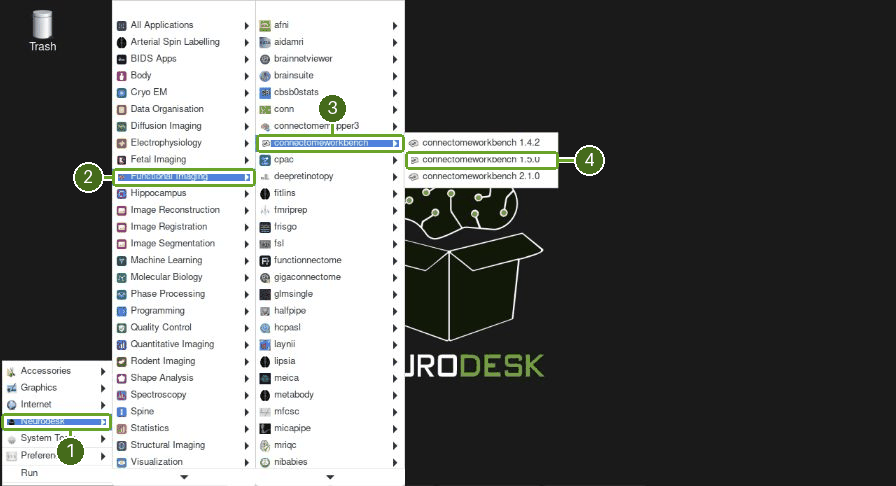
In the application menu, navigate to 1 Neurodesk → 2 Functional Imaging → 3 connectomeworkbench → 4 connectomeworkbench 1.5.0
On the terminal shell that pops up, type in:
wb_view
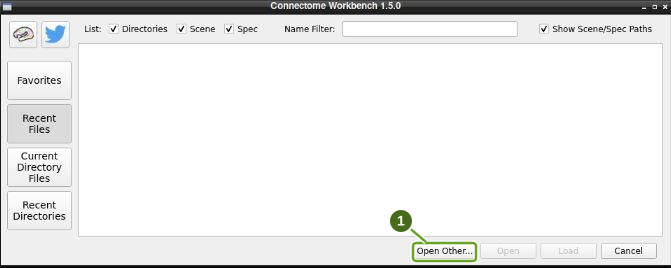
Click Open Other, marked 1 below.
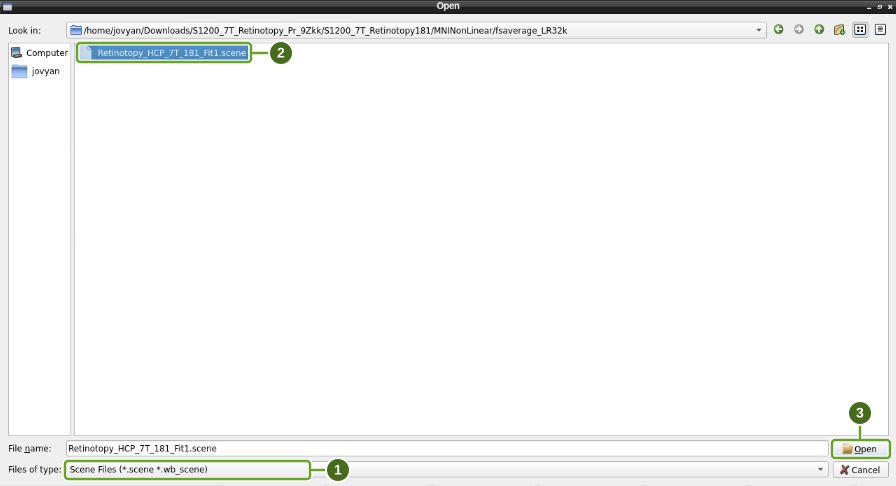
In the file chooser, 1 change Files of type from Specification Files to Scene Files. Otherwise the scene is hidden.
Navigate into the extracted archive, then follow:
S1200_7T_Retinotopy181/MNINonLinear/fsaverage_LR32k/2 Select Retinotopy_HCP_7T_181_Fit1.scene, then 3 click Open.
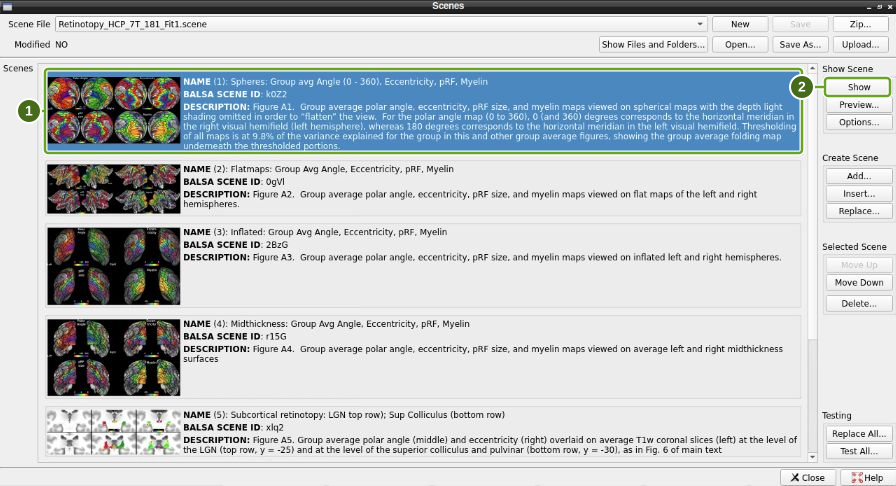
In the Scenes window, 1 select the first scene, Spheres: Group avg Angle (0–360), Eccentricity, pRF, Myelin, then 2 click Show.
The default scene displays the group-average maps.
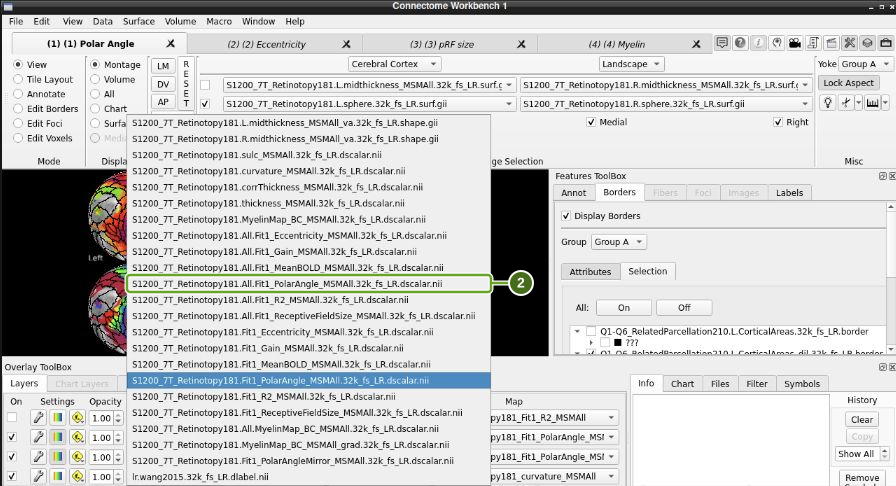
To show individual participants, 1 open the File dropdown on the first checked overlay row in the Overlay ToolBox. In this scene that row contains the polar-angle map; the unchecked R² row above it is a different layer.
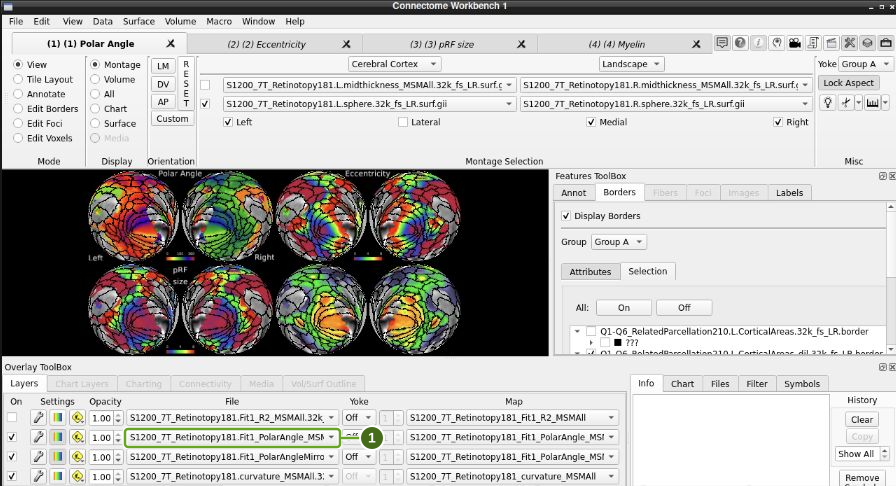
2 Select S1200_7T_Retinotopy181.All.Fit1_PolarAngle_MSMAll.32k_fs_LR.dscalar.nii. The All file contains the individual-participant maps.
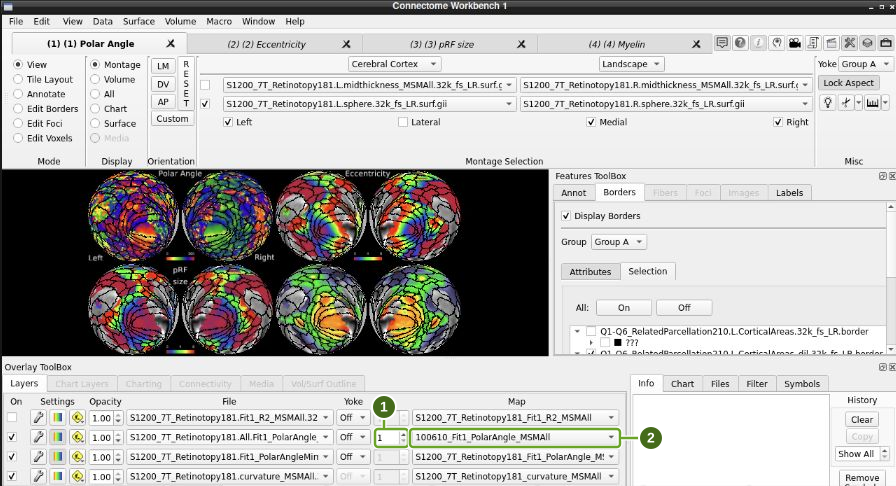
On the same overlay row, 1 enter a map index or 2 select a map from the name dropdown. Index 1 is participant 100610. The polar-angle spheres at the top left now show that participant; the other variables remain group averages until you change their tabs too.
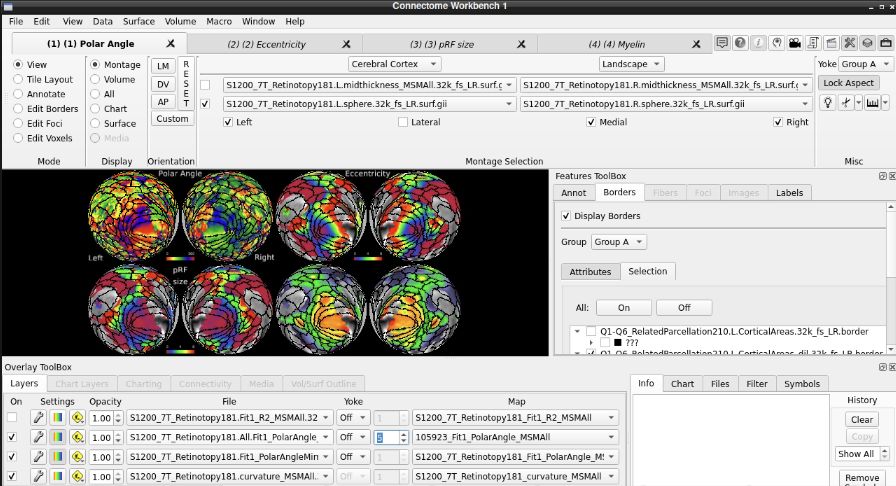
Set the index to 5 and press Enter to show participant 105923:
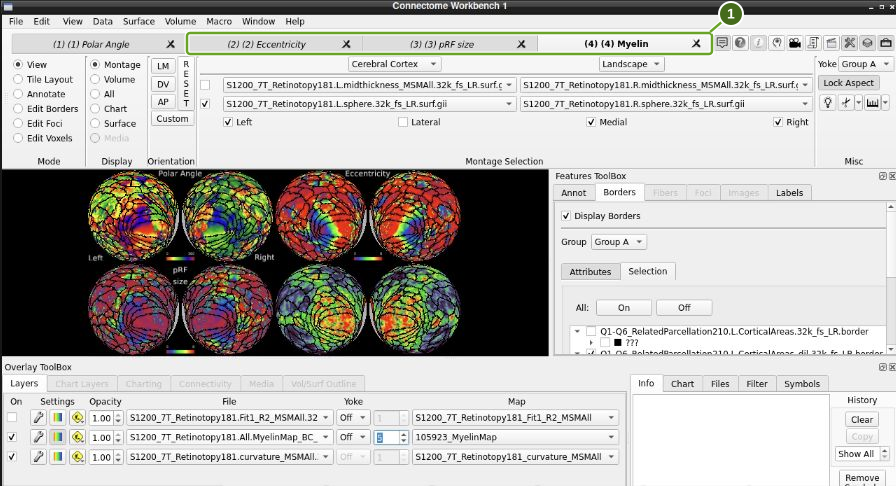
Use the tabs at the top, marked 1, to repeat the file and map selection for the other variables. Choose the file containing the following stem; each begins with
S1200_7T_Retinotopy181.and ends with.32k_fs_LR.dscalar.nii.
| Tab | Individual-participant file stem |
|---|---|
| Eccentricity | All.Fit1_Eccentricity_MSMAll |
| pRF size | All.Fit1_ReceptiveFieldSize_MSMAll |
| Myelin | All.MyelinMap_BC_MSMAll |
Set map index 5 in each tab and check that its map name begins with 105923. The view below shows all four variables for that participant.