A tutorial for running a functional MRI analysis in SPM.
This tutorial was created by Steffen Bollmann.
Email: s
.bollmannn@uq .edu .au Github: @stebo85
Twitter: @sbollmann_MRI
This tutorial is based on the excellent tutorial from Andy’s Brain book: https://
Download data
First, let’s download the data. We will use this open dataset: https://
Open a terminal and use datalad to install the dataset:
cd ~/neurodesktop-storage
datalad install https://github.com/OpenNeuroDatasets/ds000102.git
We will use subject 08 as an example here, so we use datalad to download sub-08 and since SPM doesn’t support compressed files, we need to unpack them:
cd ds000102
datalad get sub-08/
gunzip sub-08/anat/sub-08_T1w.nii.gz -f
gunzip sub-08/func/sub-08_task-flanker_run-1_bold.nii.gz -f
gunzip sub-08/func/sub-08_task-flanker_run-2_bold.nii.gz -f
chmod a+rw sub-08/ -R
The task used is described here: https://
Starting SPM and visualizing the data
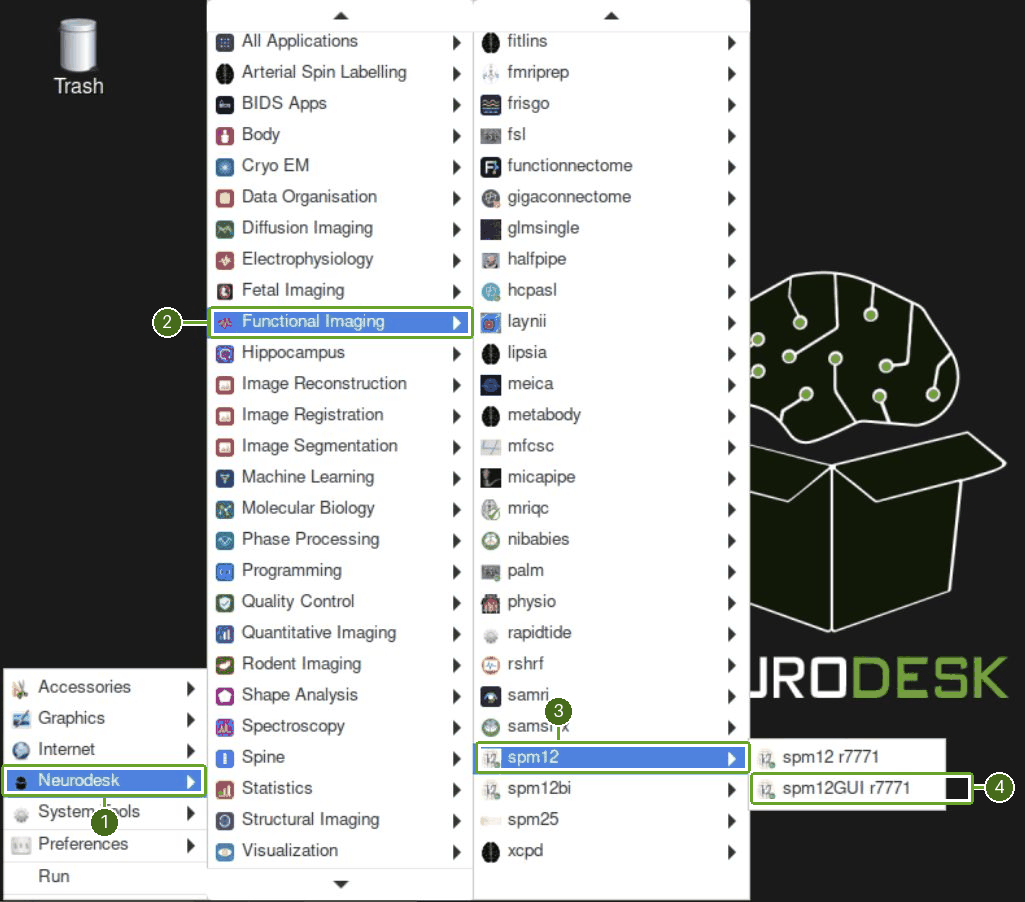
Open Neurodesk (1) → Functional Imaging (2) → spm12 (3) → spm12GUI r7771 (4) from the bottom-left Applications menu.
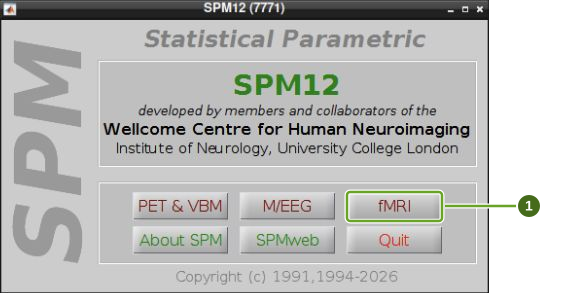
Click fMRI in the SPM selector. This launches SPM12 (7771); this standalone version does not require your own MATLAB license.
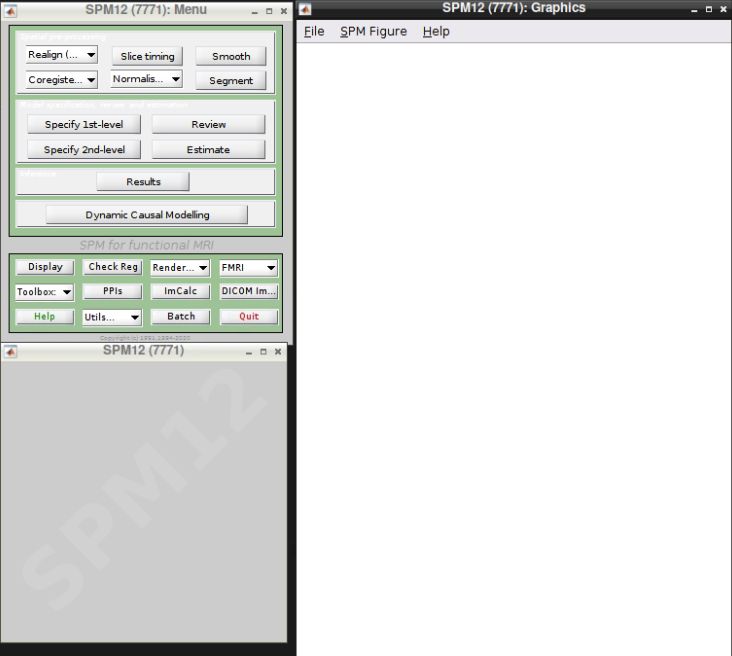
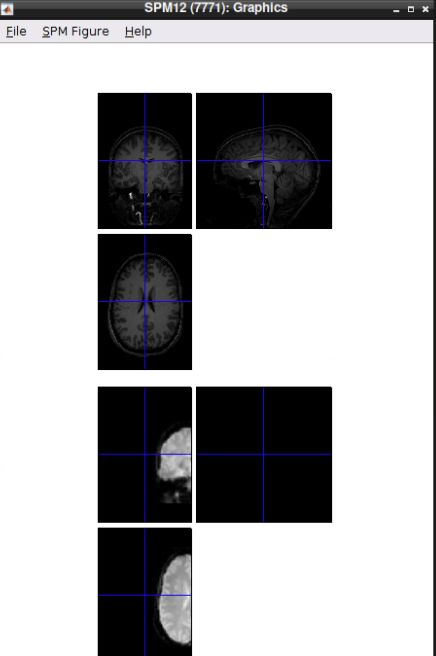
The main Menu window contains the analysis buttons; the Graphics window displays images and results.
In the main Menu window, open Utils → CD to change the working directory. This is separate from the Batch Editor’s menus.
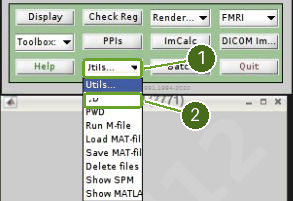
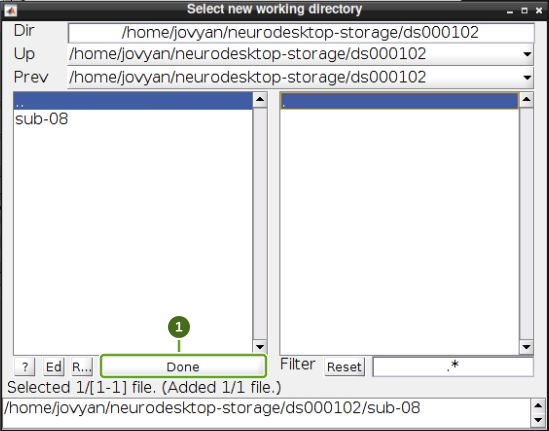
Navigate to /home/jovyan/neurodesktop-storage/ds000102. Click sub-08 in the right-hand list to select it, then Done. Clicking a directory in the left-hand list enters it; clicking its name in the right-hand list selects it. The chosen path appears at the bottom.
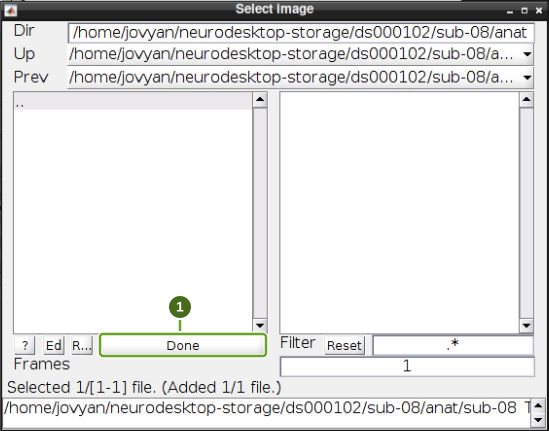
Click Display in the main menu, enter the subject’s anat folder and select sub-08_T1w.nii in the right-hand list. Click Done.
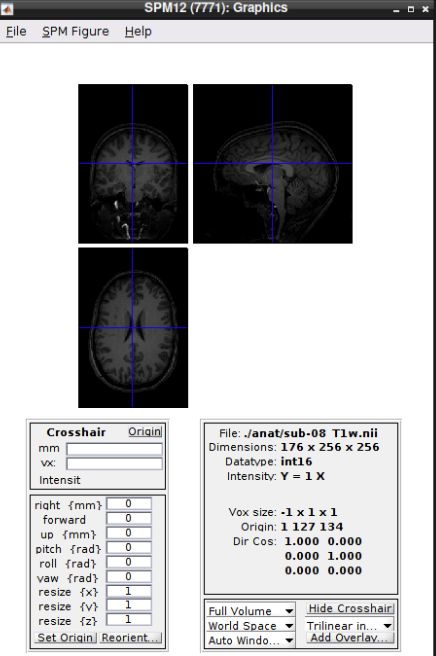
To inspect the functional scans, click Check Reg, enter func and select the first volume of sub-08_task-flanker_run-1_bold.nii. Click Done, then right-click an image panel and select Browse….
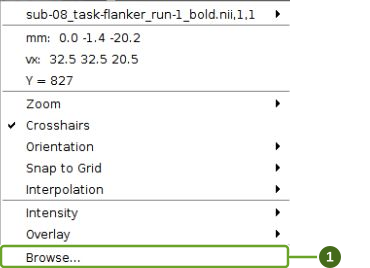
In the image selector, first right-click the bottom selected-files list and choose Unselect All, removing the initially selected first volume. Then:
Set Filter to
^sub.*run-1_boldand press Enter. This restricts the list to run 1.Set Frames to
1:146and press Enter.Right-click the upper-right file list and choose Select All.
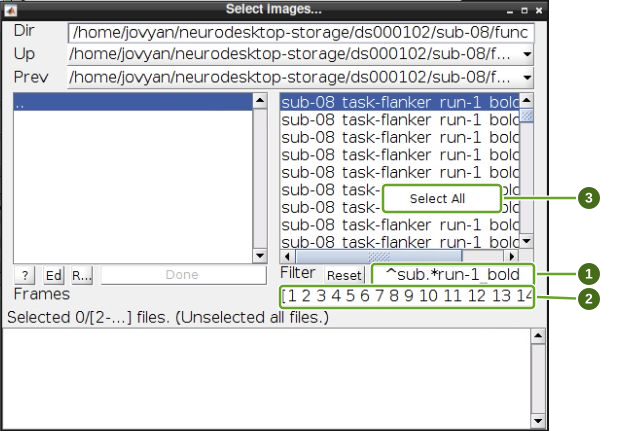
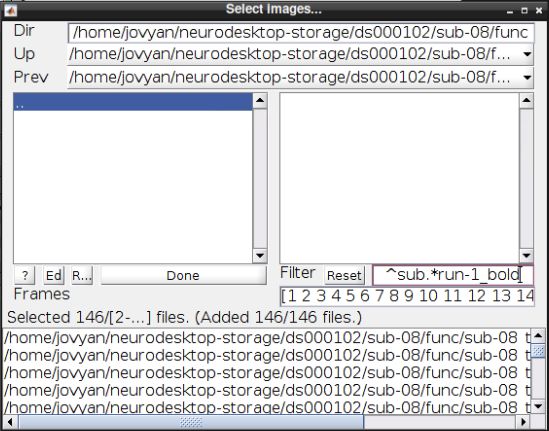
Check that the selector reports 146 selected files, then click Done. Without the run filter and clearing the initial selection, Select All can select both runs and duplicate the first volume (293 entries).
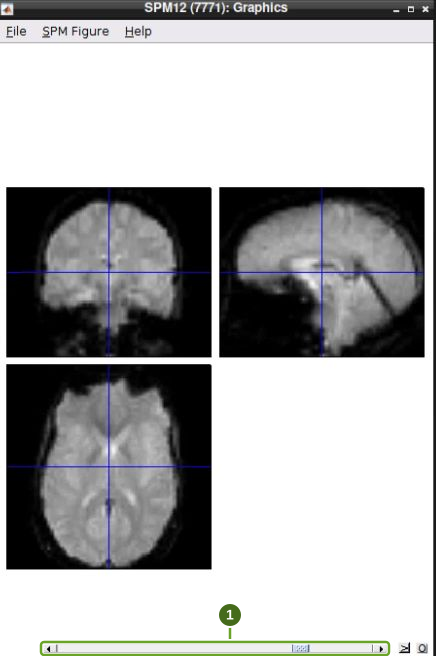
Move the slider at the bottom of the Graphics window to browse the functional volumes.
For an initial alignment check, click Check Reg again and select both the T1 image and the first functional volume. The raw images are not yet aligned.
Preprocessing the data
Process both functional runs: the model at the end of this tutorial uses a separate session for each run. Each run contains 146 volumes. Keep each run in its own session for realignment and slice timing.
Realignment
Select Realign (Est & Reslice) from the SPM Menu (the third option).
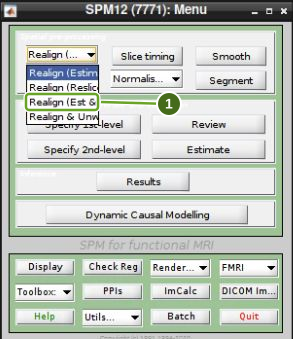
In the Batch Editor, select Data. Click New: Session once in the Current Item list. Double-click the new Session row in the upper configuration pane to select its images.
In the func folder, use Filter ^sub.*run-1_bold and Frames 1:146, pressing Enter after each field. Right-click the upper-right list, choose Select All, confirm 146 selected files and click Done.
Select Data again and click New: Session once more. Configure the second session in the same way, using Filter ^sub.*run-2_bold. Both Session rows should show 146 files. Leave the other realignment settings at their defaults.
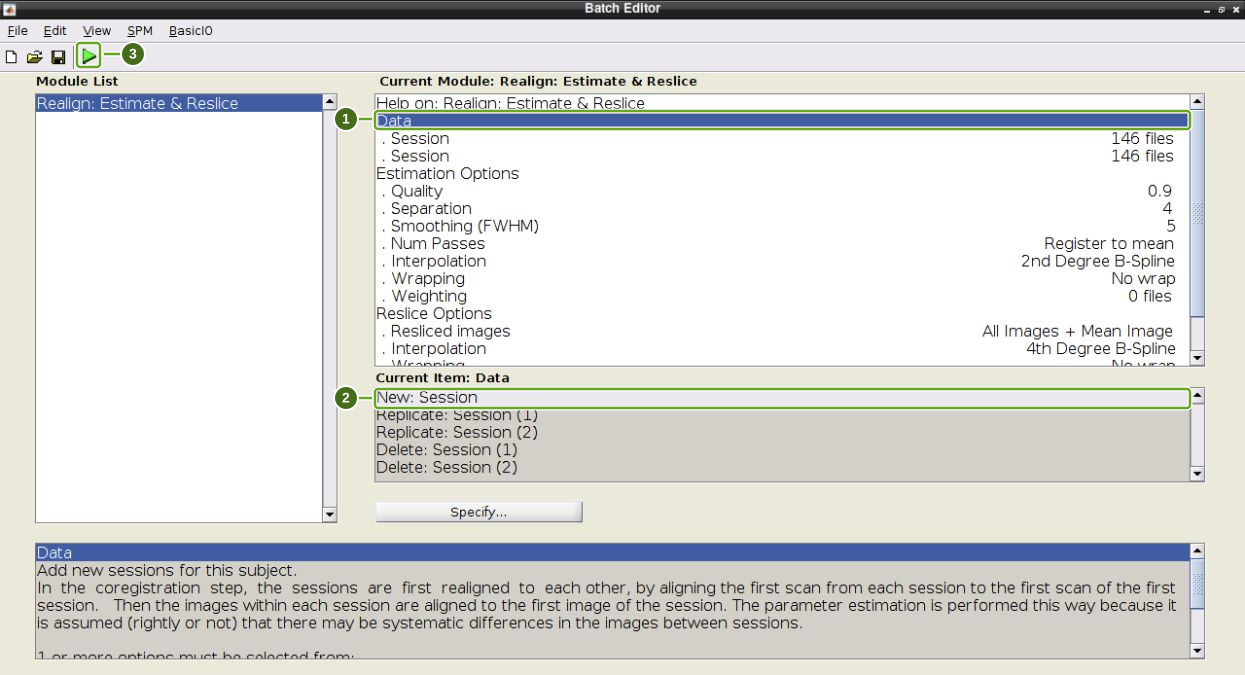
Click the green Play button to run the batch. Processing can take several minutes; the SPM progress window may need to be restored from the desktop’s window list if it was minimized.
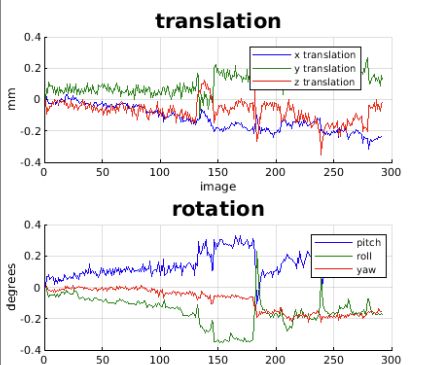
The Graphics window displays translation (millimetres) and rotation (degrees) across all 292 images.
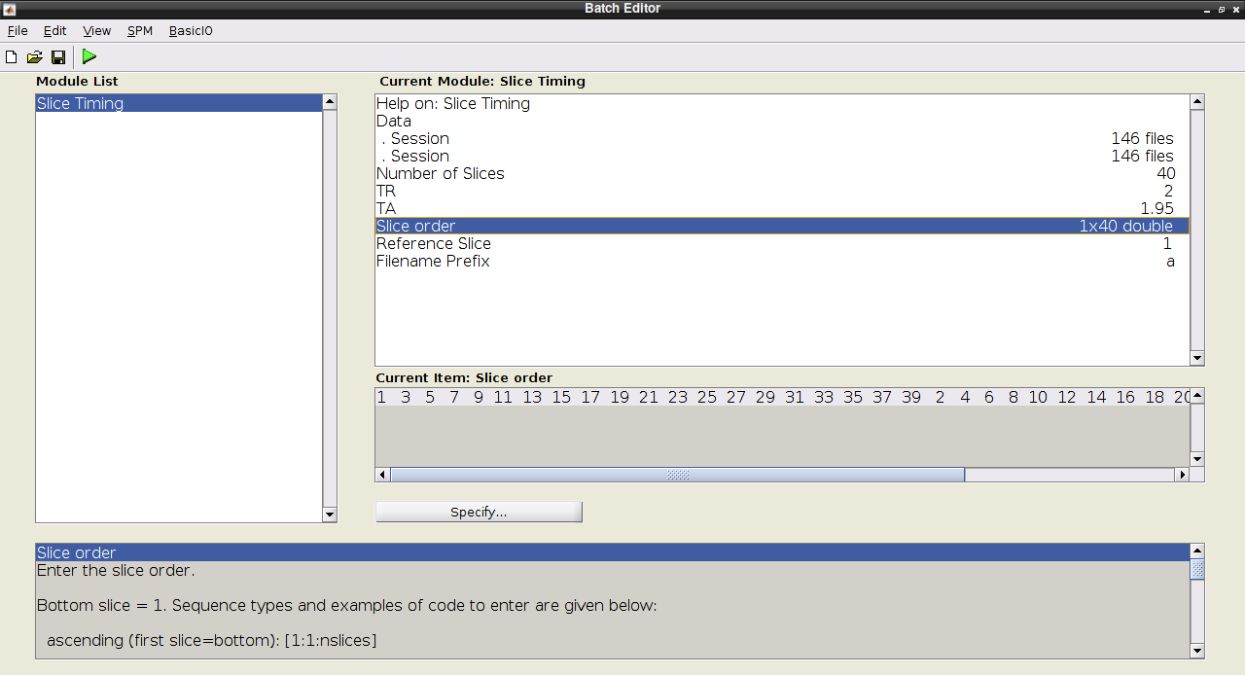
Slice timing correction
Click Slice timing in the main SPM Menu. In the Batch Editor’s Data item, create two Session entries as above. Select the realigned images separately for each run:
| Session | Filter | Frames | Expected count |
|---|---|---|---|
| Run 1 | ^rsub.*run-1_bold | 1:146 | 146 |
| Run 2 | ^rsub.*run-2_bold | 1:146 | 146 |
Double-click each parameter row, enter its value and click OK:
| Parameter | Value |
|---|---|
| Number of Slices | 40 |
| TR | 2 |
| TA | 1.95 |
| Slice order | [1:2:40 2:2:40] |
| Reference Slice | 1 |
Keep the filename prefix a, then click the green Play button. These acquisition settings apply to this example dataset.
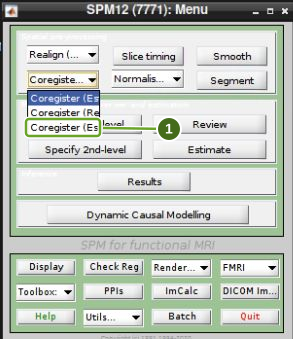
Coregistration
Click Coregister (Estimate & Reslice), the third option in the main SPM Menu.
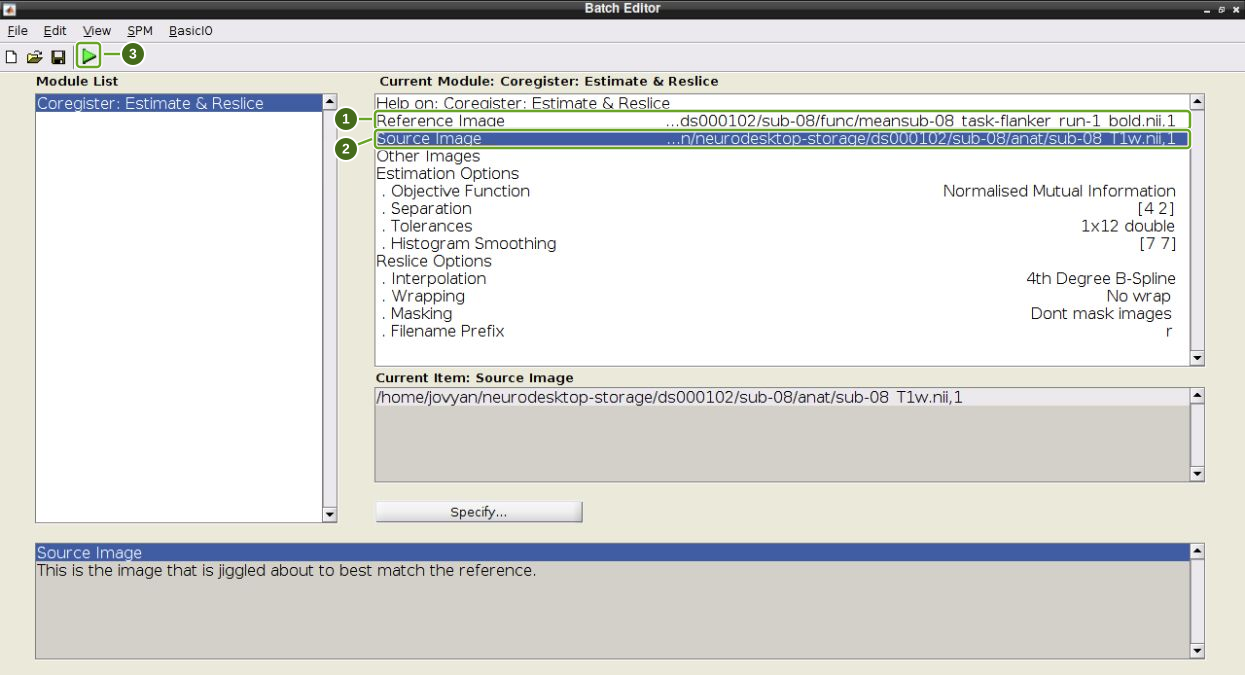
Set the following image fields in the Batch Editor, leaving the other settings at their defaults:
| Field | Image |
|---|---|
| Reference Image | func/meansub-08_task-flanker_run-1_bold.nii |
| Source Image | anat/sub-08_T1w.nii |
The mean image was created during realignment. Use Filter ^mean in func to find it. Click the green Play button.
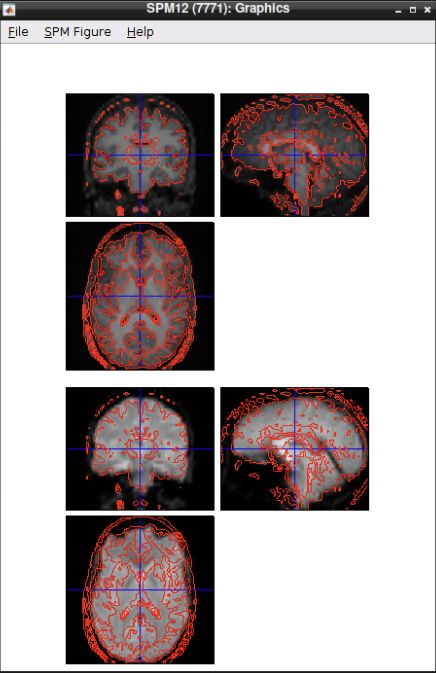
After processing, click Check Reg and select anat/rsub-08_T1w.nii and the mean functional image. Right-click an anatomical image panel and choose Contour → Display onto → all.
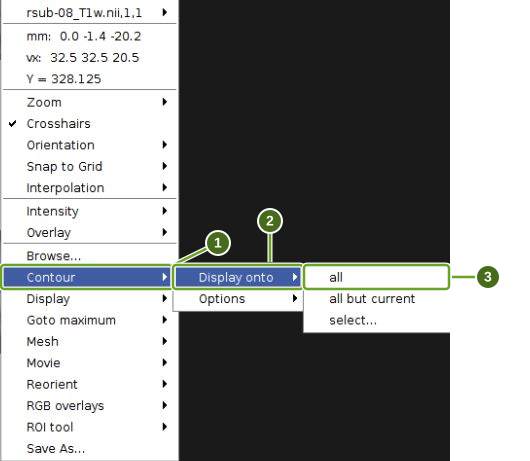
Inspect the contours against the functional image to check the alignment.
Segmentation
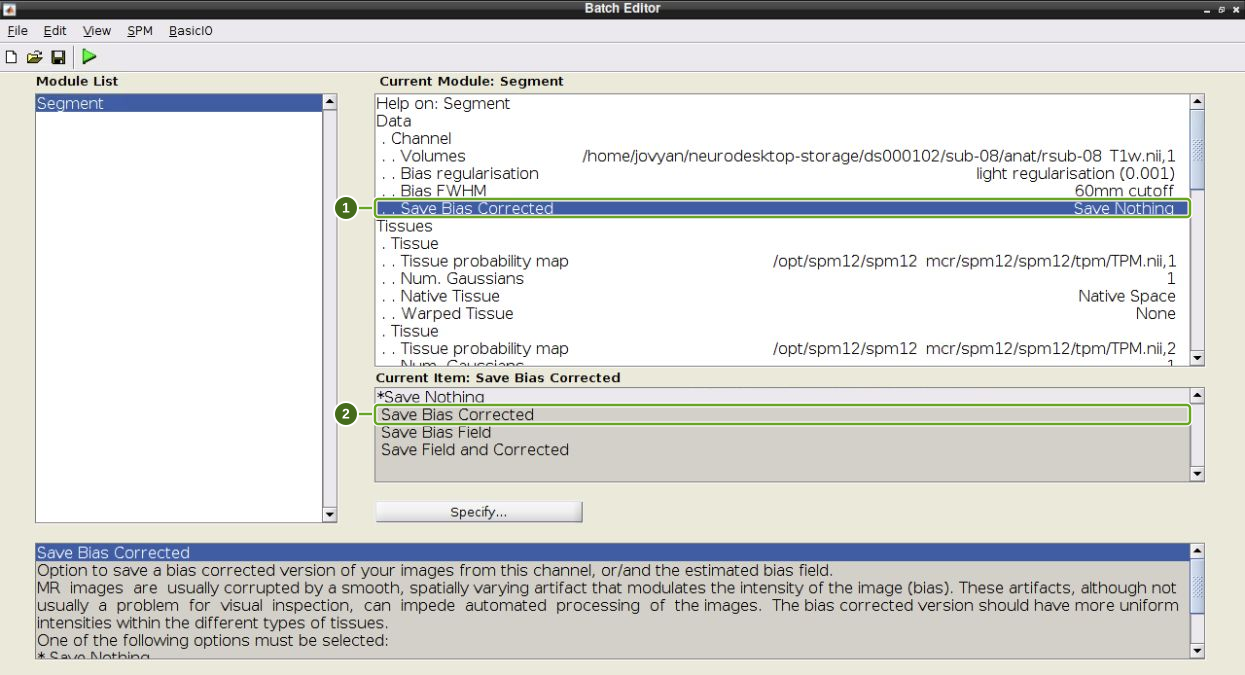
Click Segment in the main SPM Menu. Set Data → Channel → Volumes to anat/rsub-08_T1w.nii.
Select Save Bias Corrected in the upper configuration pane, then click Save Bias Corrected in the lower Current Item choices.
Scroll the upper configuration pane to the bottom. Select Deformation Fields, then choose Forward in the Current Item choices. Leave the other settings at their defaults and click the green Play button.
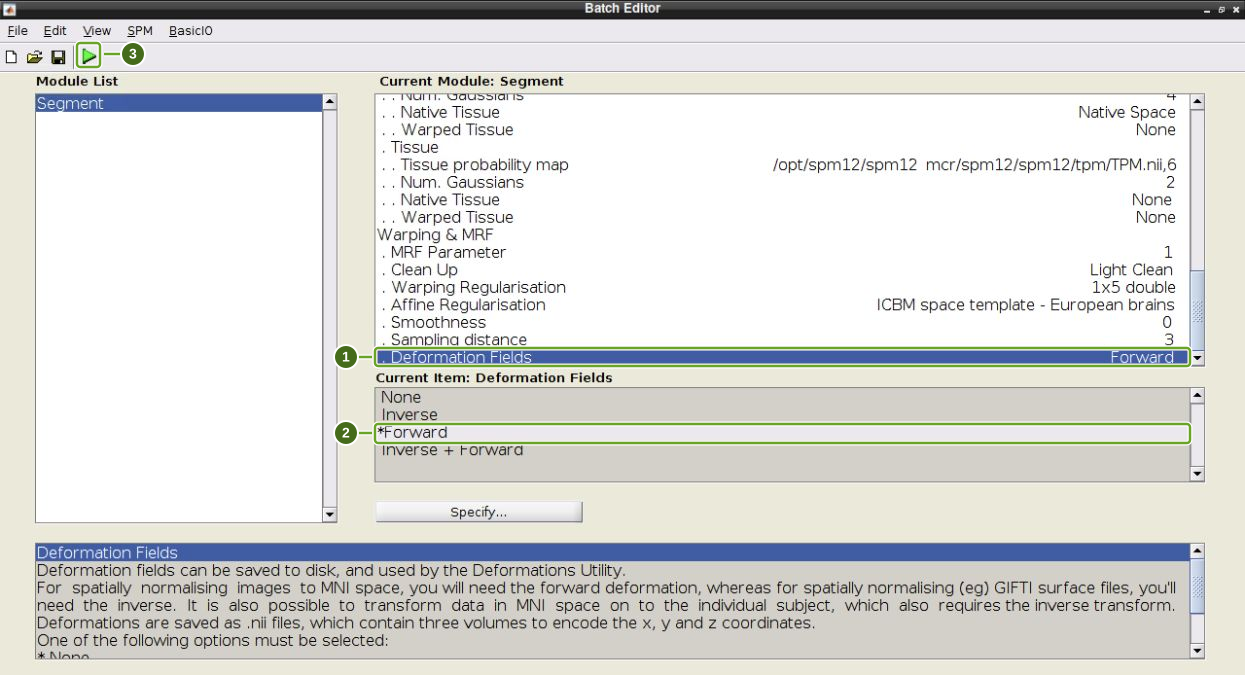
Wait for segmentation to finish before continuing. Its y_rsub-08_T1w.nii deformation field is needed for normalization.
Apply normalization
Select Normalize (Write), the second option in the main SPM Menu.
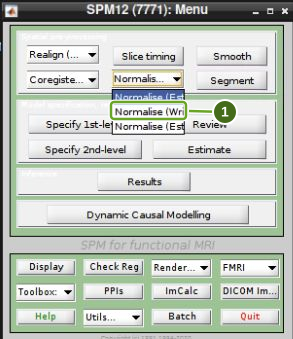
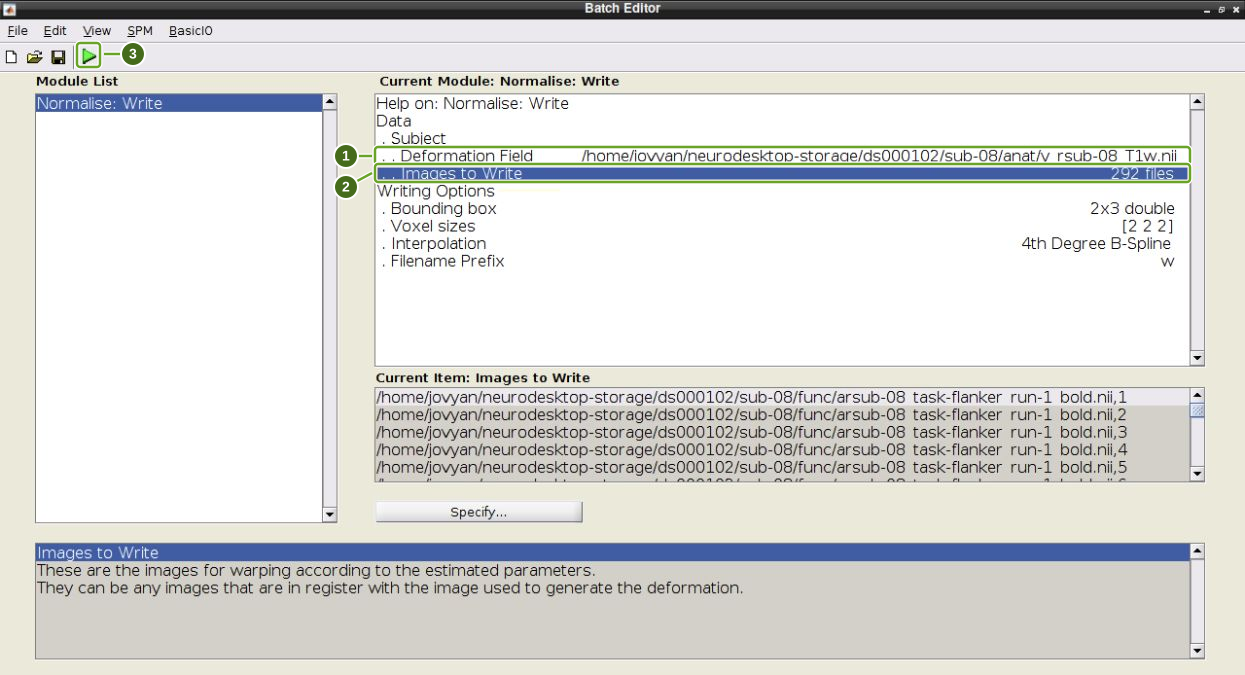
Select Data in Batch Editor, then click New: Subject once in the Current Item list. Set:
| Field | Selection |
|---|---|
| Deformation Field | anat/y_rsub-08_T1w.nii from segmentation |
| Images to Write | Both arsub-08 functional runs |
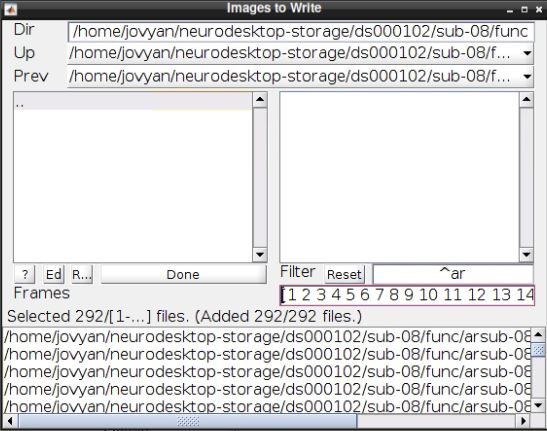
For Images to Write, enter func, set Filter to ^ar, set Frames to 1:146 and press Enter after each field. Right-click the upper-right list and choose Select All. This time 292 selected volumes is correct: both 146-volume runs use the same subject’s deformation field.
Keep the default writing options (2 mm voxels and prefix w), then click the green Play button.
Checking the normalization
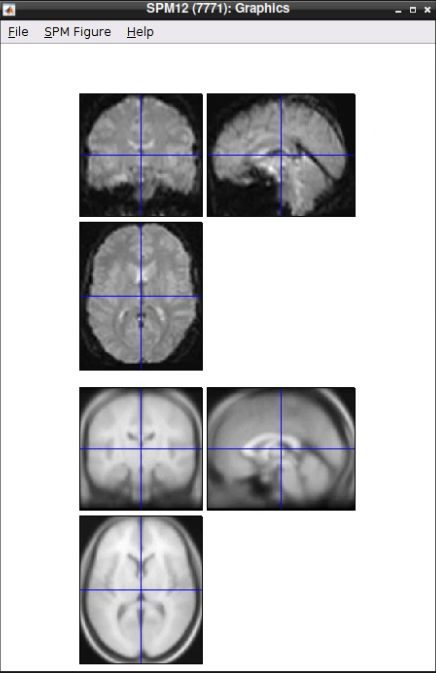
Click Check Reg and select the first volume of func/warsub-08_task-flanker_run-1_bold.nii. Use Frames 1 for this comparison, rather than expanding the whole series.
Add the canonical template avg305T1.nii from this directory inside the SPM container:
/opt/spm12/spm12_mcr/spm12/spm12/canonicalYou can enter the directory directly in the selector’s Dir field. Change Filter to ^avg305T1 if the earlier functional-image filter is still active. Click the template in the right-hand list, confirm that two images are selected and click Done. If Graphics remains minimized, restore it from the desktop’s window list.
Inspect the normalized functional image against the template.
Smoothing
Click Smooth in the main SPM Menu. Double-click Images to smooth, enter func and use Filter ^war, Frames 1:146 and Select All. Confirm 292 volumes, covering both normalized runs.
Keep FWHM [8 8 8] mm, Data Type SAME, Implicit masking No and filename prefix s. Click the green Play button.
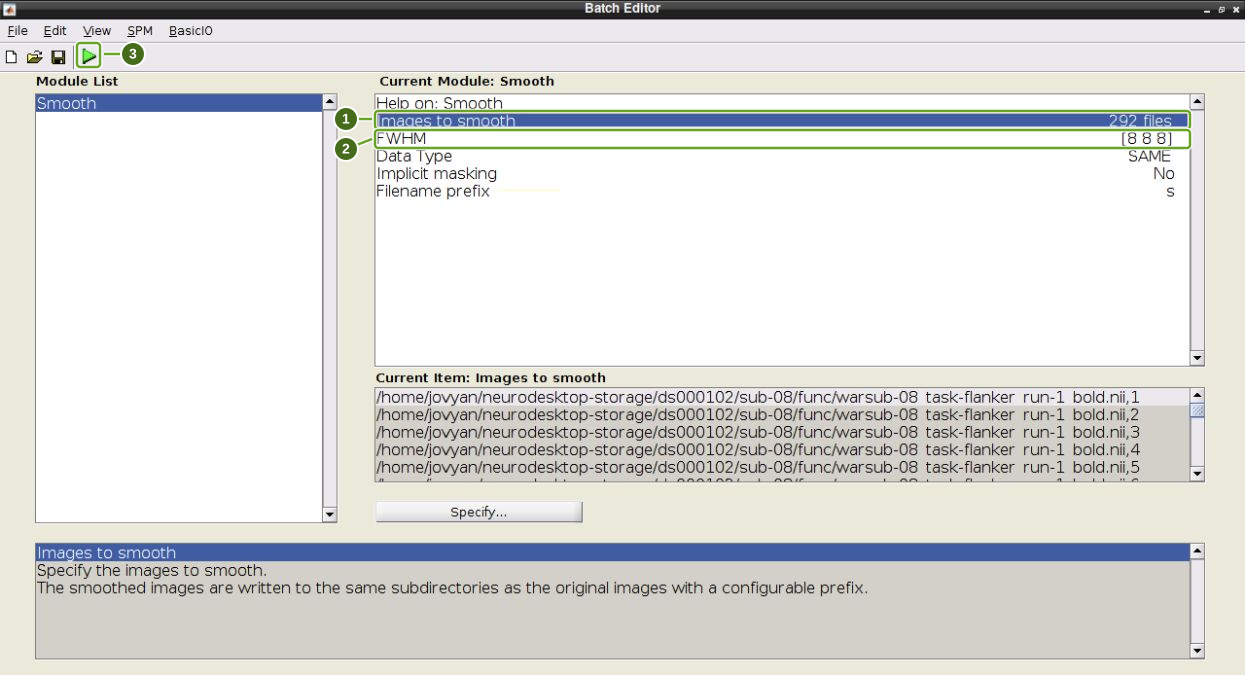
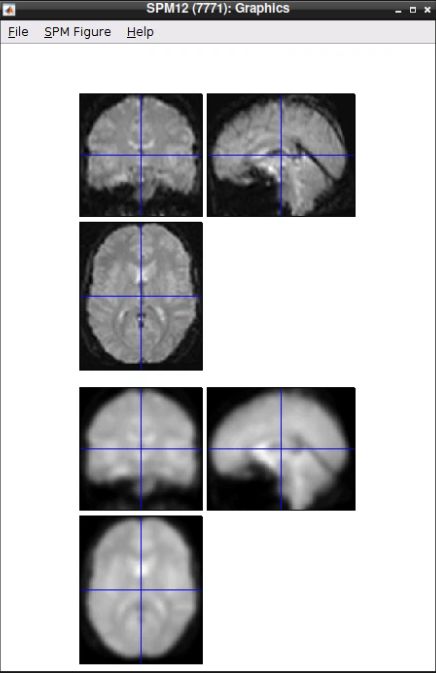
After processing, use Check Reg to compare the first volume of a warsub-08 run with the matching swarsub-08 run. The latter should appear smoother.
Analyzing the data
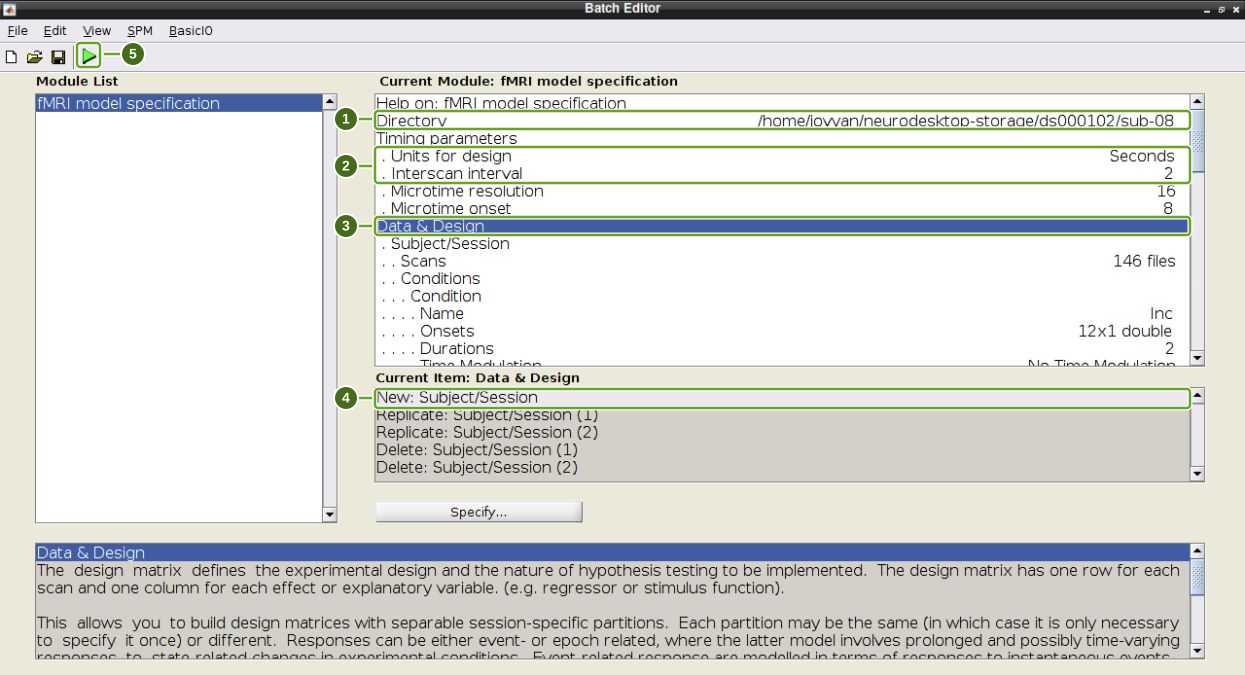
Click Specify 1st-level in the main SPM Menu. Set:
| Field | Value |
|---|---|
| Directory | /home/jovyan/neurodesktop-storage/ds000102/sub-08 |
| Timing parameters → Units for design | Seconds |
| Timing parameters → Interscan interval | 2 |
Select Data & Design, then click New: Subject/Session twice to create two sessions.
For each session, double-click Scans and select its smoothed run in func:
| Session | Filter | Frames | Expected count |
|---|---|---|---|
| Run 1 | ^swar.*run-1_bold | 1:146 | 146 |
| Run 2 | ^swar.*run-2_bold | 1:146 | 146 |
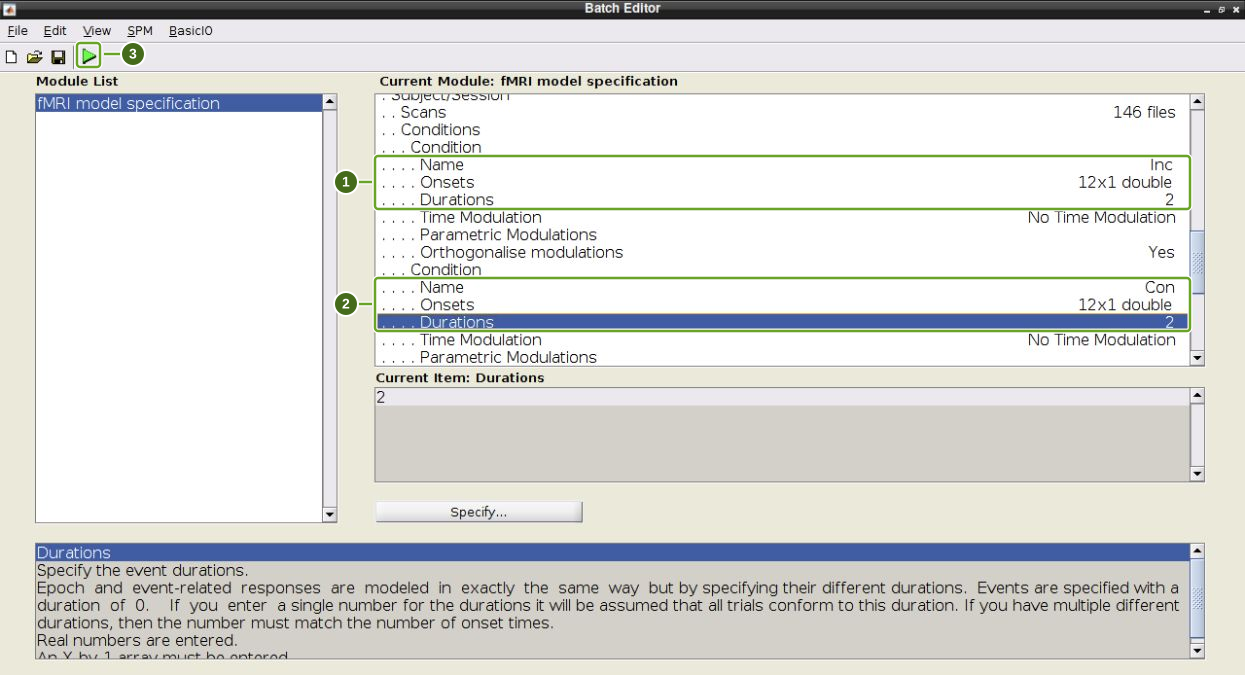
Select Conditions within each session and click New: Condition twice. Keep the condition order Inc, then Con, in both sessions. Double-click the Name, Onsets and Durations rows to enter the following values; click OK after each field.
| Session | Name | Onsets in seconds | Durations |
|---|---|---|---|
| Run 1 | Inc | 0 10 20 52 88 130 144 174 236 248 260 274 | 2 |
| Run 1 | Con | 32 42 64 76 102 116 154 164 184 196 208 222 | 2 |
| Run 2 | Inc | 0 10 52 64 88 150 164 174 184 196 232 260 | 2 |
| Run 2 | Con | 20 30 40 76 102 116 130 140 208 220 246 274 | 2 |
A single duration of 2 applies to every event in that condition. Each Onsets row should show 12x1 double after entry. Scroll within the upper configuration pane to reach the later conditions and second session.
Leave the other model settings at their defaults and click the green Play button. To retain an editable job for later use, the Save toolbar button can save the batch before running it.
Review the design
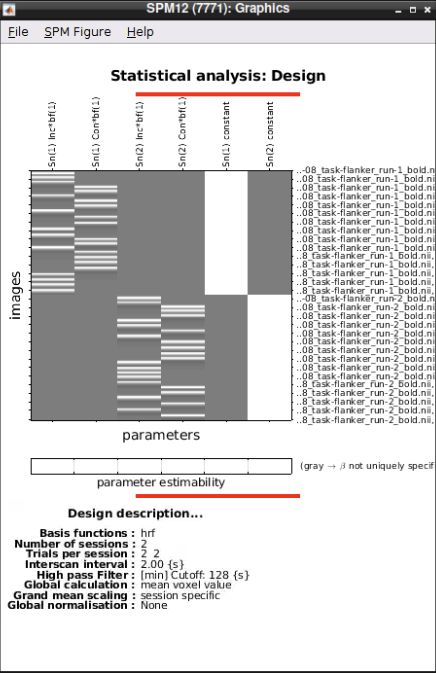
Click Review in the main menu, select the new sub-08/SPM.mat and click Done. The design has 292 image rows and six columns: Inc and Con for run 1, Inc and Con for run 2, then one constant for each session.
Estimating the model
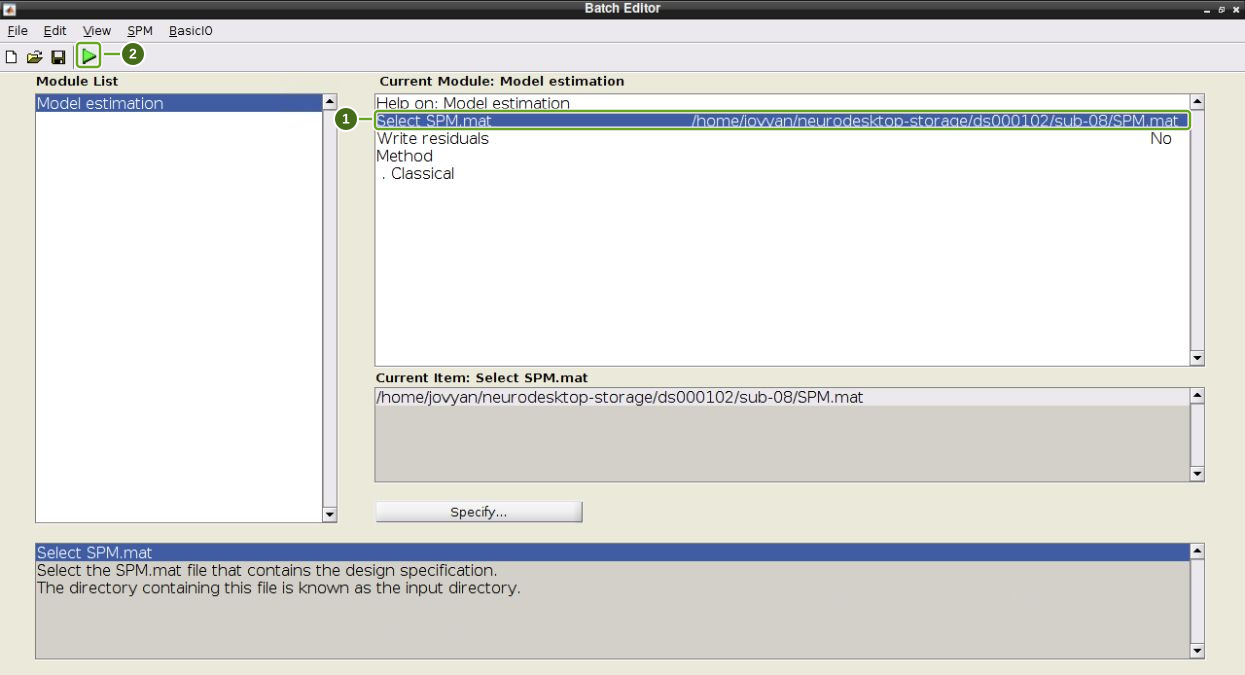
Click Estimate in the main SPM Menu. Double-click Select SPM.mat, choose sub-08/SPM.mat and click Done. Keep Write residuals No and Method Classical, then click the green Play button. Wait for estimation to finish before opening Results.
Inference
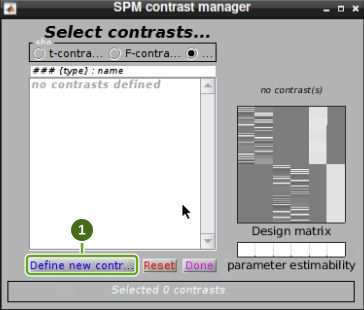
Click Results, select the estimated sub-08/SPM.mat and click Done. In the contrast manager, click Define new contrast.
Use a t-contrast with:
| Field | Value |
|---|---|
| Name | Incongruent-Congruent |
| Contrast weights vector | 0.5 -0.5 0.5 -0.5 |
Click submit beneath the weights box to validate the vector, then OK. The status should say that the name and contrast are defined. The four weights apply to Inc1, Con1, Inc2 and Con2; SPM pads the two constant columns with zero weights.
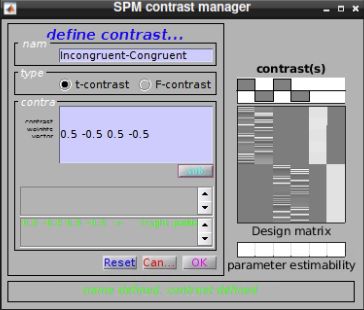
The saved contrast is selected in the list. Click Done, then answer the prompts in the Stats: Results window:
apply masking:
none.p value adjustment:
none.threshold {T or p}: enter
0.01and press Enter.extent threshold {voxels}: enter
10and press Enter.
These settings reproduce this tutorial’s uncorrected display threshold. The result should contain the contrast map and design matrix:
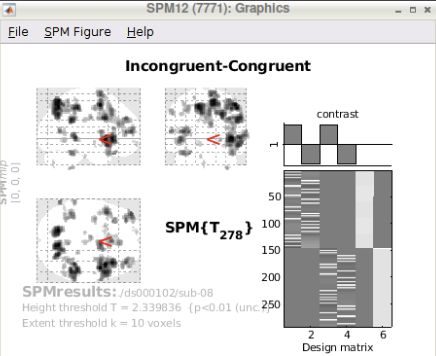
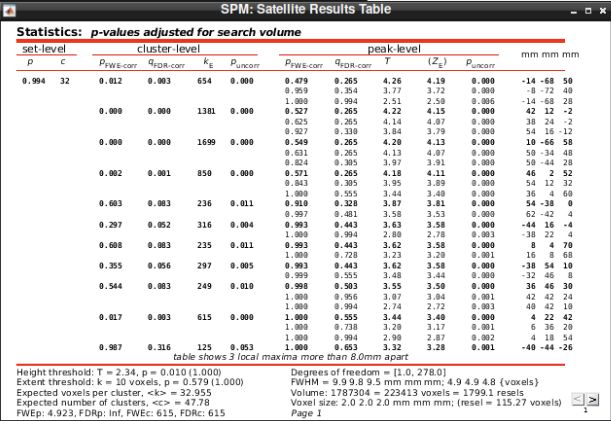
For a wider, separate statistics table, choose SPM Figure → Results Table in the Graphics window, then click whole brain in the Results controls. The Satellite Results Table displays the table and threshold details without the narrow Graphics window’s clipping.