This guide shows how to launch fMRIPrep in Neurodesk, configure a preprocessing run, and troubleshoot common setup problems.
Neurodesk setup · Runnable fMRIPrep notebook · Original author’s GitHub
Assumptions
Your data is already in BIDS format
You plan to run fmriprep using Neurodesk
You have a copy of the freesurfer license file (freesurfer.txt), that can be read from the file system using Neurodesk
Steps
Launch Neurodesktop
In JupyterLab, open a Launcher tab with the + button. Under Neurodesk, select Neurodesktop RDP or Neurodesktop VNC.
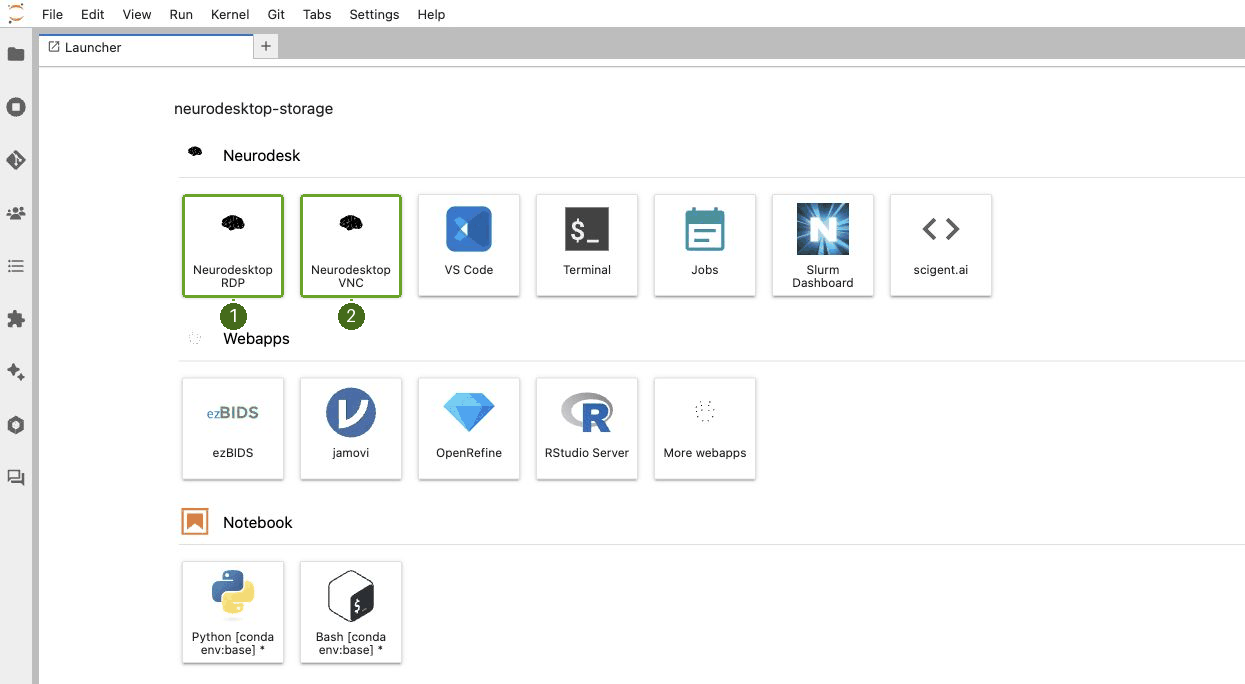
Open fMRIPrep
In the bottom-left Applications menu, select Neurodesk (1) → Functional Imaging (2) → fmriprep (3) → fmriprep 25.2.6 (4). The four numbers match the screenshot below.
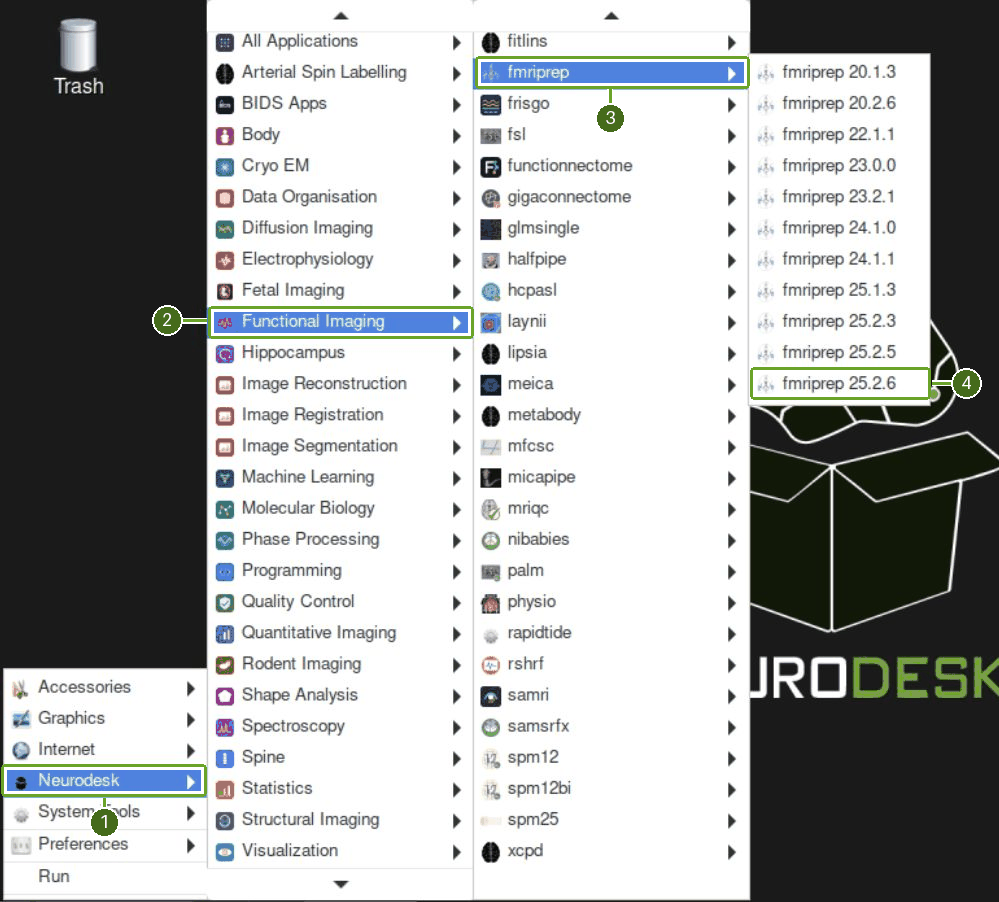
The application entry opens a terminal with fMRIPrep loaded. Check the version before entering the analysis command:
fmriprep --version
ml list
You can also load a container in an existing terminal with ml fmriprep/<version>. The command examples below were checked against the installed fMRIPrep command help; running a complete analysis also requires your BIDS data and FreeSurfer license.
Setting up fmriprep command
You can now enter your fmriprep command straight into the command line in the newly opened terminal. Here is a quick guide to the command I have used with the options I have found most useful. Note that fMRIPrep requests the path to the freesurfer license file, which should be somewhere in your system for neurodesk to read - e.g. in ‘neurodesktop-storage’.
Replace the example paths with your BIDS dataset, output directory, work directory and FreeSurfer license. Keep the work and output directories separate from the input data. This example uses six processes and a 10,000 MB memory budget; match these to your allocation.
export ITK_GLOBAL_DEFAULT_NUMBER_OF_THREADS=6

fmriprep /path/to/bids \
  /path/to/derivatives/fmriprep \
  participant \
  --fs-license-file /path/to/freesurfer.txt \
  --output-spaces T1w MNI152NLin2009cAsym fsaverage fsnative \
  --participant-label 01 \
  --nprocs 6 --mem 10000 \
  -w /path/to/work/fmriprep \
  -v
A continuation backslash must be the last character on its line. Leave BIDS validation enabled for the first run. See the fMRIPrep command reference for options.
Then hit return and fMRIPrep should now be merrily working away on your data :)
Some common pitfalls I have learned from my mistakes (and sometimes from others)
If fmriprep hangs it could well be that you are out of disk space. Sometimes this is because fmriprep created a work directory in your home folder which is often limited on the HPC. Make sure fmriprep knows to use a work drectory in your scratch. you can specify this in the fmriprep command by using -w /path/to/the/work/directory/you/made
I learned the following from TomCat (@thomshaw92) - fMRIPrep can get confused between subjects when run in parallel. Parallelise with caution.
If running on a HPC, make sure to set the processor and memory limits, if not your job will get killed because it hogs all the resources.
Viewing fMRIprep HTML Outputs: Do not view these files in a browser within Neurodesktop using the RDP protocol. The HTML animations break RDP compression. Recommended Alternatives:
JupyterLab (Best Performance): Open the reports directly using the JupyterLab file browser.
VNC Protocol: If you prefer a full Linux desktop environment, connect via VNC instead of RDP.