MRIQC calculates image-quality metrics and generates visual reports. Processing runs in a terminal; the resulting HTML report opens in a browser.
General use
Open Neurodesktop
In JupyterLab, open a Launcher tab with +. Choose Neurodesktop VNC (2) in the shared launcher guide below.
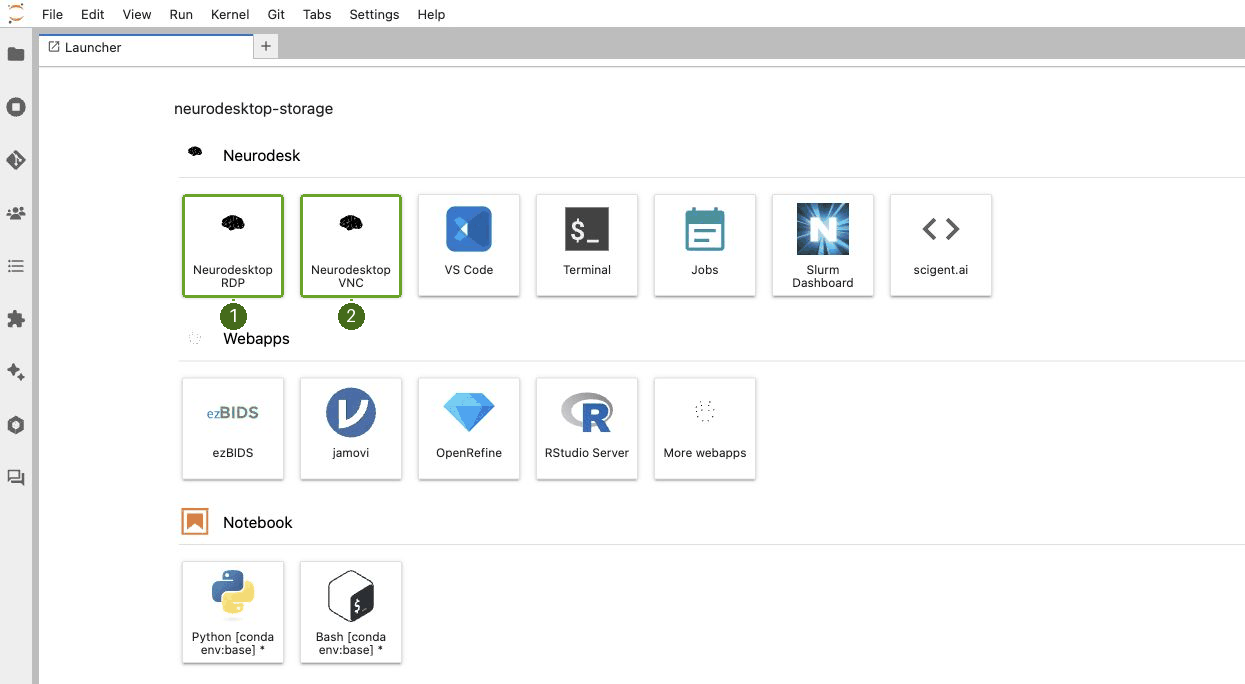
Open MRIQC
In the bottom-left Applications menu, select Neurodesk (1) → Functional Imaging (2) → mriqc (3) → mriqc 24.0.2 (4).
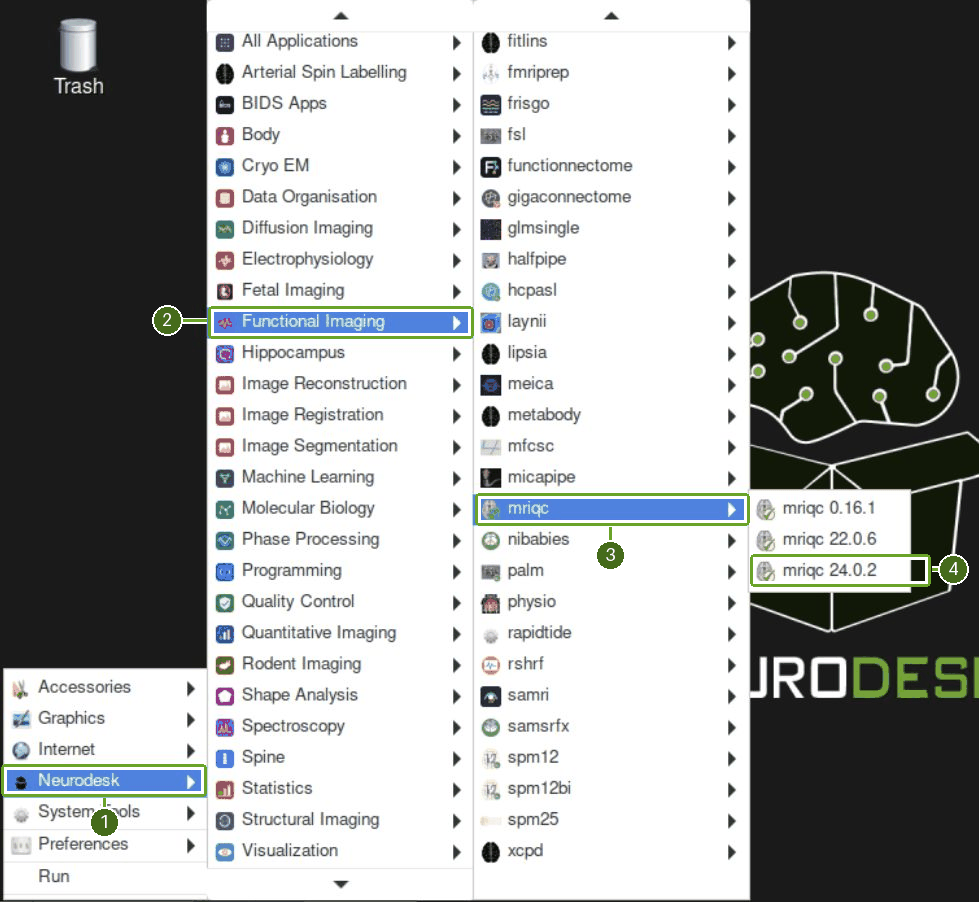
The entry opens a terminal with MRIQC loaded. Type this command after the terminal prompt, then press Enter:
mriqc --version
Record the menu version and the executable version with your analysis. On the tested platform, the 24.0.2 entry reports v24.1.0.dev0+gd5b13cb5.d20240826.
For your own data, MRIQC takes a BIDS dataset root, an output folder and the analysis level participant. Keep the output and work folders outside the raw input dataset. The example below uses four processes and an 8 GB memory budget; --mem_gb is measured in gigabytes. Match these settings to the resources available in your instance or HPC job.
Worked example: one public anatomical scan
1. Download participant 08
This example uses OpenNeuro dataset ds000102, which is also used in the SPM and fMRIPrep examples. DataLad first installs its file catalogue, then downloads the requested participant’s file contents.
In the terminal opened from the MRIQC menu, shown above with MRIQC loaded, paste the following commands and press Enter after each line. If this dataset already exists at the shown location, reuse that clone and continue with the datalad get step.
mkdir -p ~/neurodesktop-storage/open-data
cd ~/neurodesktop-storage/open-data
datalad clone https://github.com/OpenNeuroDatasets/ds000102.git ds000102
cd ds000102
datalad get sub-08/
Wait for the download to finish and the prompt to return. The participant contains an anatomical image and two functional runs. This walkthrough will check only the anatomical image.
2. Run MRIQC
Paste this whole command block into the MRIQC terminal, then press Enter. Each continuation backslash must remain the final character on its line.
base=~/neurodesktop-storage
mriqc "$base/open-data/ds000102" "$base/mriqc-demo" participant \
  --participant-label 08 --modalities T1w \
  --nprocs 4 --omp-nthreads 2 --mem_gb 8 \
  --no-sub --notrack \
  --work-dir "$base/mriqc-work"
--modalities T1w selects the anatomical scan. --no-sub disables automatic submission of the quality metrics, and --notrack disables usage tracking.
Wait for MRIQC completed and the terminal prompt. The first run took about six minutes on the tested instance. Reruns can reuse completed work from mriqc-work.
3. Find the results
The output folder is ~/neurodesktop-storage/mriqc-demo/. Check that it contains:
sub-08_T1w.html— the participant’s visual report.sub-08/anat/sub-08_T1w.json— the numerical quality metrics and processing metadata.
The tested run produced one anatomical report and 68 finite numerical values in the metrics file. The separate mriqc-work folder holds intermediate processing files.
4. Open the visual report
In the MRIQC terminal where you ran the analysis, paste this command and press Enter:
firefox --new-window "file://$HOME/neurodesktop-storage/mriqc-demo/sub-08_T1w.html"Firefox inside Neurodesk opens the Basic visual report. The first panel enhances the background around the head.
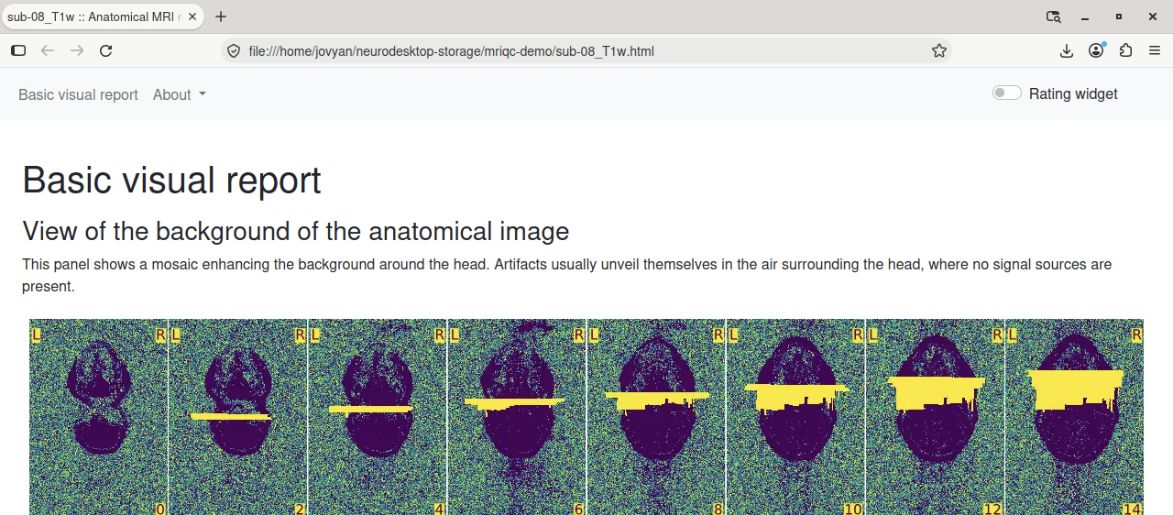
Scroll down to Zoomed-in mosaic view of the brain. Browse through its slices to inspect the anatomical image, then continue through the remaining report panels. The screenshot shows the beginning of this mosaic; more slices follow below.
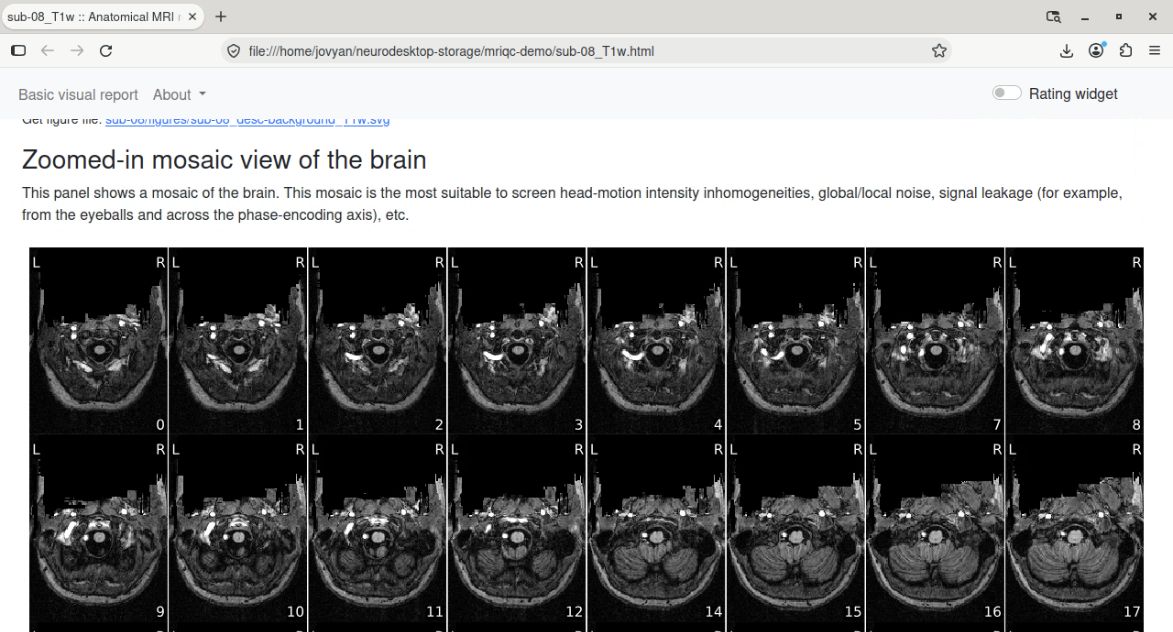
Use the images together with the numerical metrics when assessing quality. For metric definitions and study-level workflows, see the official MRIQC documentation.